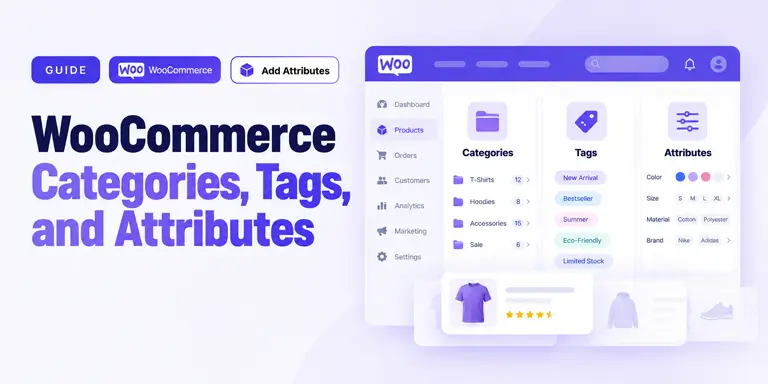
WooCommerce Categories, Tags, and Attributes: SEO & Setup Guide

Quick Answer: WooCommerce product tags are optional, non-hierarchical labels that connect products with shared themes or characteristics. Categories organize your store into a hierarchy, while attributes describe details such as size, color, or material and can power filtering and variations. Use tags for flexible grouping, categories for store structure, and attributes for product-specific characteristics.
Most store owners encounter WooCommerce product tags, categories, and attributes while organizing a catalog, but the differences are not always obvious at first. Without a clear plan, the problems usually appear later. Categories get used for details that should have been attributes, tags pile up with one-off labels, and product filters become harder to manage.
The confusion is understandable. All three tools help organize products, but they solve different problems. Categories define your store structure, tags create flexible connections between products, and attributes describe characteristics shoppers may want to compare, filter, or select.
This guide explains what each taxonomy is for, how to set it up correctly, when to use each option, and how categories, tags, and attributes can affect your store’s SEO, navigation, and product filtering experience.
Table of Contents
What Are WooCommerce Product Categories?
WooCommerce product categories are hierarchical groups that form the backbone of your store’s structure. They work like sections in a physical shop. For example:
Clothing > Men's Clothing > T-ShirtsEvery WooCommerce product is assigned to a product category. If you do not choose one, WooCommerce uses the store’s default product category.
Categories can have parent and child relationships, descriptions, display settings, and their own slugs. They also commonly appear in shop navigation and can act as important commercial landing pages.
Because categories often support navigation and broader shopping intent, they usually deserve more SEO attention than tags or individual attribute archives.
What Are WooCommerce Product Tags?
WooCommerce product tags are non-hierarchical labels used to connect products that share a theme, use case, campaign, or other relationship. Unlike categories, tags do not have parent-child relationships.
Examples include:
- Eco-friendly
- Gift idea
- New arrival
- Limited edition
Tags are optional. Their main value is flexible grouping: products from different categories can share the same tag when that connection helps shoppers discover related items.
On the frontend, tags can lead to archive pages that list every product assigned to that tag. These pages can support internal discovery when the tag has a clear purpose, enough relevant products, and content that differs meaningfully from your category pages.
What Are WooCommerce Product Attributes?
Attributes describe specific product characteristics such as color, size, material, capacity, or brand. Product characteristics like these are generally better handled as attributes rather than categories or tags, especially when shoppers need to filter or select them.
Attributes are also the foundation of WooCommerce product variations. For example, a variable T-shirt might use Color and Size attributes to create options such as Blue / Medium or Black / Large.
Global Attributes
Global attributes are created once under Products > Attributes and can be reused across your catalog.
They are usually the better option for reusable characteristics such as:
- Color
- Size
- Material
- Capacity
- Brand
Using global attributes keeps product data consistent and makes it easier to build store-wide filters later.
Custom Attributes
Custom attributes are created directly on an individual product.
They can work well for a characteristic that is genuinely unique to one product and will not be reused elsewhere. However, they are less suitable when you want consistent filtering or standardized product data across a larger catalog.
WooCommerce Categories vs Tags vs Attributes: Quick Comparison
| Type | Structure | Main Purpose | Required? | Typical SEO Role |
| Category | Hierarchical | Organize the store | Yes, through the default or selected category | Important archive and navigation pages |
| Tag | Non-hierarchical | Connect related products | No | Supporting archive and internal discovery |
| Attribute | Attribute plus values/terms | Describe, filter, and create variations | No | Product discovery and optional archive pages |
A simple mental check can help:
- Category: What section does this product belong in?
- Tag: What theme, campaign, or idea connects this product to others?
- Attribute: What characteristic can a shopper compare, filter, or select?
When Should You Use a Category, Tag, or Attribute?
| If you need to… | Use |
| Build the main store hierarchy | Category |
| Create a path like Clothing > Men > Shirts | Category |
| Connect products around a temporary theme | Tag |
| Build an important seasonal landing page | Category |
| Describe color, size, or material | Attribute |
| Create variations like Blue / Medium | Attribute |
| Let shoppers filter products by size or color | Global attribute |
| Build a primary commercial archive page | Usually category |
The key is to choose the structure that matches the purpose instead of creating a new taxonomy term simply because it is available in the product editor.
How to Set Up WooCommerce Product Categories
Create and Organize Categories
- Go to Products > Categories.
- Create your top-level categories first, then add subcategories where they help users navigate.
- Keep category names short, descriptive, and easy to understand.
- Choose a parent category when the new category belongs under a broader section.
- Select an appropriate display type for the category page if your WooCommerce setup or theme provides that option.
- Add a category image when it improves the visual presentation of your shop or archive layout.
Avoid vague categories such as “Misc” or “Other” when a clearer product grouping is possible.
Optimize Category Pages for Shoppers and Search Engines
- Add a useful category description that explains what shoppers will find there.
- Create a unique meta title and meta description using your SEO plugin.
- Keep category slugs concise and descriptive.
- Avoid unnecessarily deep category hierarchies that make products harder to reach.
- Use breadcrumb navigation so visitors can understand where the current category sits within your store.
A strong category page should help shoppers browse products first. SEO optimization should support that purpose rather than turn the archive into a keyword-heavy landing page.
How to Set Up WooCommerce Product Tags
- Go to Products > Tags, or add tags from the product editing screen.
- Use tags for themes or relationships that can connect products across categories.
- Avoid creating a tag with the same name and purpose as an existing category.
- Do not use tags as a substitute for characteristics such as size, color, or material when attributes would model the data better.
- Keep the tag list intentional instead of creating dozens of one-off labels that apply to only one product.
Useful tags should help a shopper discover a meaningful group of related products. If a tag creates no useful browsing path, it probably does not need to exist.
How to Set Up WooCommerce Product Attributes
- Go to Products > Attributes.
- Add a reusable global attribute such as Color or Size.
- Configure its terms, such as Red, Blue, Green, Small, Medium, or Large.
- Open a product and go to the Attributes section in Product Data.
- Add the global attribute to the product.
- Enable Used for variations when the attribute should define options for a variable product.
- Enable Visible on the product page when shoppers should see the attribute as product information.
- Save your changes and configure any required variations.
When an attribute is used for variations, WooCommerce can create combinations such as Blue / Medium, with individual variation data such as price, SKU, stock status, or image.
Example: Organizing a Clothing Store Correctly
Imagine you sell men’s T-shirts in several colors and sizes.
Category: Clothing > Men > T-ShirtsTags: Summer collection, gift idea, new arrivalAttributes:
1. Color: Black, White, Blue
2. Size: S, M, L, XL
3. Material: Cotton“Black” should not normally become a category just because shoppers may look for black T-shirts. Color is a product characteristic, so an attribute is usually the cleaner choice, especially when shoppers need to filter products by it.
The same logic applies to size, material, capacity, shape, or other reusable characteristics.
How WooCommerce Product Tags, Categories, and Attributes Affect SEO
A clear WooCommerce taxonomy creates useful relationships between products and archive pages. It also gives shoppers predictable navigation paths and helps search engines discover how different parts of your catalog relate to one another.
Categories usually deserve the most SEO attention because they often function as primary navigation pages and commercial landing pages. Tags generally play a supporting role by connecting products around narrower themes or use cases.
Attributes mainly support product discovery, filtering, and variations. However, some global attributes can also have archive pages, which means they may become search landing pages when there is genuine demand for that type of product grouping.
The goal is not to index every taxonomy page. The goal is to make important catalog pages useful, distinct, and easy to navigate.
Should Category, Tag, and Attribute Archive Pages Be Indexed?
Not every taxonomy archive deserves to appear in search results. Decide based on the page’s purpose, usefulness, and search demand.
- Category archives: Often worth indexing when they target meaningful shopping intent, contain a useful selection of products, include helpful context, and are linked from your store navigation.
- Tag archives: Consider indexing them only when the tag creates a distinct and useful product collection. Thin tag archives with very few products, little unique context, and no clear search intent often do not justify separate indexable pages.
- Attribute archives: Global attributes can have archive pages when archives are enabled. Index them only when the specific attribute page has a clear purpose and genuine search value.
Do not make indexability decisions based only on the number of products. A smaller archive can still be useful if it satisfies a distinct query well.
How Product Filters Use Categories, Tags, and Attributes
Once your product data is organized properly, categories, tags, and attributes can also power frontend product filtering.
WooCommerce includes block-based filtering tools that can help shoppers narrow product collections by taxonomies and product characteristics such as categories, tags, attributes, price, and availability, depending on your WooCommerce setup and the blocks in use.
Large catalogs benefit especially from filtering because shoppers may need to narrow dozens or hundreds of products by characteristics such as size, color, material, price, or category before they find a suitable option.
Faceted navigation can also create large numbers of filter URLs. Decide which filtered pages deserve to be indexable, and control unnecessary crawling separately through an appropriate technical SEO strategy. Do not assume every filter combination should become a search landing page.
ShopLentor- WooCommerce Builder for Elementor & Gutenberg
A versatile page builder to build modern and excellent online stores with more than 100k+ Active Installations.
Using ShopLentor to Display Categories, Tags, and Product Filters
WooCommerce’s native taxonomy and filtering tools are enough for many stores. ShopLentor, becomes useful when you want more control over how categories, tags, filters, and archive layouts appear on the storefront.
ShopLentor’s Product Filter module supports taxonomy-based filtering, including categories and tags, along with attribute filtering. AJAX filtering can also update product results without requiring a full page reload. ShopLentor also provides additional product-filtering and archive-building options across its Elementor and Gutenberg integrations.
ShopLentor also includes dedicated Product Categories and Product Tags widgets for Elementor Single Product Templates. These widgets do not replace the taxonomy setup in WooCommerce. First assign the relevant categories and tags to the product in WooCommerce, then use the ShopLentor widgets to control where that information appears on the single product page.
If you are planning how filtered product collections should appear on shop or archive pages, this guide to WooCommerce product grid layouts covers additional layout approaches for presenting products clearly.
How to Show Product Categories on a ShopLentor Single Product Page
According to the official ShopLentor documentation, the WL: Product Categories widget is designed for the Single Product Page Template and displays the categories associated with the current product.
- Go to WordPress Dashboard > ShopLentor > Settings > Elements and enable the Product Categories widget.
- Open ShopLentor > Template Builder and create or edit a Single Product template.
- Click Edit with Elementor.
- Search for Product Categories in the Elementor widget panel and select the widget with the WL badge.
- Drag the WL: Product Categories widget into the location where you want the product’s categories to appear.
- Use the widget’s style settings to adjust how the category links look, then preview the Single Product Template.
For the full setup walkthrough, see the ShopLentor Product Categories documentation.
Video Presentation:
How to Show Product Tags on a ShopLentor Single Product Page
The WL: Product Tags widget works in a similar way. It is designed for the Single Product Template and displays the tags assigned to the current WooCommerce product.
- Go to WordPress Dashboard > ShopLentor > Settings > Elements and enable the Product Tags widget.
- Open ShopLentor > Template Builder and create or edit your Single Product template.
- Open the template with Elementor.
- Search for Product Tags and choose the widget with the WL badge.
- Drag the WL: Product Tags widget onto the Single Product Template where you want the tag links to appear.
- Customize the tag styling from the available widget settings and preview the template on the frontend.
See the ShopLentor Product Tags documentation for the official setup steps.
This gives you a useful separation of responsibilities: WooCommerce controls which categories and tags belong to each product, while ShopLentor controls how those assigned terms are presented on a custom single product layout.
ShopLentor is not required to organize WooCommerce taxonomy correctly; plan the taxonomy first, then use the builder and filtering tools to make that structure easier for shoppers to see and use.
Video Presentation:
Common WooCommerce Taxonomy Mistakes
- Allowing uncontrolled faceted-navigation URLs: Filter combinations can create large numbers of URLs, so crawl and indexation rules should be planned intentionally.
- Using categories and tags interchangeably: This makes your store structure harder to understand and can create overlapping archives.
- Creating a tag with the same purpose as a category: This can create highly overlapping archive pages without adding meaningful browsing value.
- Creating one-off tags: Tags that apply to only one product and serve no discovery purpose often add unnecessary taxonomy clutter.
- Using categories for characteristics such as color or size: Reusable product characteristics are generally better handled as attributes.
- Using custom attributes when global attributes would be easier to maintain: This can make catalog-wide filtering and consistency more difficult.
- Building excessively deep category hierarchies: Too many levels can make important products harder for shoppers to reach.
- Keeping low-value taxonomy archives indexable: Archives without a clear search purpose can add little value to your organic search strategy.
Frequently Asked Questions
What is the difference between WooCommerce categories and tags?
Categories are hierarchical and define the main structure of your store. Tags are non-hierarchical, optional labels that connect products around themes or relationships that may cross category boundaries.
Are WooCommerce product attributes the same as variations?
No. Attributes describe characteristics such as color or size. Variations are specific purchasable combinations created from those attributes, such as Blue / Medium.
Do I need to use product tags on every product?
No. Product tags are optional. Use them only when they create a useful relationship between products or help shoppers discover a meaningful collection.
Can a WooCommerce product have multiple categories?
Yes. A WooCommerce product can belong to multiple categories. Use multiple categories when they genuinely help shoppers discover the product, but avoid unnecessary assignments that make your store structure harder to understand.
Should WooCommerce product tags be indexed?
Only when a tag archive provides a useful and distinct destination for shoppers and search engines. Thin or overlapping tag archives with no clear search intent may be better kept out of the index.
Are product attributes good for SEO?
Attributes mainly support product discovery, filtering, and variations rather than providing a direct ranking benefit. They can still contribute to a better catalog structure and may create useful archive pages when global attribute archives are enabled and supported by real search demand.
Conclusion
WooCommerce product tags, categories, and attributes are not interchangeable. Use categories to define where a product belongs, tags to connect products across that structure, and attributes to describe characteristics shoppers may want to compare, filter, or select.
The cleaner those relationships are, the easier your catalog becomes to navigate and maintain. Before creating a new taxonomy term, ask whether you are defining where the product belongs, what it relates to, or what characteristic it has.
Once that foundation is organized, you can expose those choices through WooCommerce’s native filtering tools or customize the storefront experience further with ShopLentor’s product filtering and archive-building options.