
How to Set Minimum and Maximum Order Limits in WooCommerce (2026 Guide)

If you sell on WooCommerce, you’ve probably run into orders that don’t make sense — a $2 order that costs more to ship than it earns, or a single buyer trying to clear out your entire stock in one checkout. Setting minimum and maximum order limits in WooCommerce solves both problems, and you can do it with a plugin or a shortcode snippet.
Quick Answer: WooCommerce has no built-in order-limit setting, so you need a plugin or a short code snippet to cap order value or quantity. For wholesale stores, the Whols plugin lets you set and auto-enforce a minimum order quantity tied to wholesale pricing rules and user roles.
This guide walks through both methods, shows real code you can copy, and covers per-product and per-category rules, plugin comparisons, and the UX side of displaying limits clearly.
Table of Contents
What Are Minimum and Maximum Order Limits in WooCommerce?
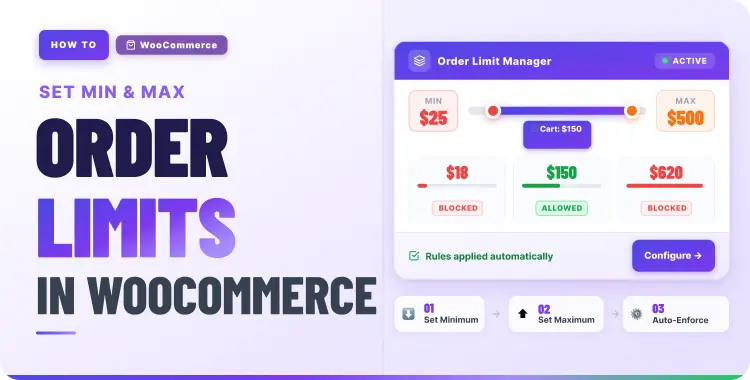
A minimum order limit is the smallest cart total, item count, or product quantity a customer must reach before WooCommerce allows checkout. A maximum order limit is the upper cap — the highest value, quantity, or item count allowed in a single order.
Store owners use these limits to:
- Protect profit margins on low-value orders
- Prevent inventory-draining bulk purchases from a single buyer
- Enforce wholesale minimums for B2B customers
- Reduce fraud risk on unusually large orders
- Keep shipping costs proportional to order value
WooCommerce checks these rules at the cart or checkout stage. If a customer’s order falls outside the range, WooCommerce shows an error notice and blocks the “Place Order” button until they adjust their cart.
Why Set Order Limits in Your WooCommerce Store?
Order limits aren’t just a technical setting — they’re a business decision. Here’s when they matter most:
- Low-margin products: If a $5 candle costs $6 to pack and ship, a minimum order amount protects you from losing money on every sale.
- Wholesale and B2B stores: Bulk buyers often need a minimum quantity (say, 10 units) before wholesale pricing applies.
- Limited inventory drops: A maximum quantity per order stops one shopper from buying out a limited restock meant for many customers.
- High-value or custom products: A maximum order amount can redirect large orders to a sales team instead of an automated checkout.
- Fraud and abuse prevention: Unusually large orders are a common signal in payment fraud, so a maximum cap adds a simple safety net.
Minimum Order Amount vs. Minimum Order Quantity: What’s the Difference?
These terms get mixed up often, so it’s worth defining them clearly before you set anything up.Term What It Controls Example Minimum/maximum order amount The total cart value (currency) “Orders must total at least $50” Minimum/maximum order quantity The total number of items in the cart “Orders must include at least 5 items” Per-product quantity limit How many units of one specific product a customer can buy “Limit 2 per customer” for a flash-sale item
You can apply any of these store-wide, by product, by category, or by customer role. Most stores combine at least two — for example, a store-wide minimum order amount plus a per-product maximum quantity during a sale.
Methods of Minimum and Maximum Order Limits in WooCommerce
Method 1: Set Order Limits With a Plugin (Recommended for Most Stores)
For most WooCommerce store owners, a plugin is the safer and faster route. It avoids editing theme files, comes with a settings screen, and usually supports role-based and category-based rules out of the box.
Best Plugins for WooCommerce Order Limits
| Plugin | Best For | Key Features | Pricing |
|---|---|---|---|
| Minimum Order Amount (WooCommerce.com) | Simple store-wide or role-based minimums | Global rules, category/payment-method exceptions, custom messages | Paid extension |
| Minimum And Maximum Quantity per Product (WooCommerce.com) | Wholesale and bulk sellers | Rule-based min/max per product, category, or role; frontend validation | Paid extension |
| Order Limit for WooCommerce (wc-order-limit-lite) | Store owners on a budget | Min/max order amount and quantity, role-based rules, cart restrictions | Free (WordPress.org) |
| YITH WooCommerce Minimum Maximum Quantity | Product- and category-level control | Global and per-product quantity/spend rules | Freemium |
| B2BKing | B2B and wholesale stores | Dynamic min/max rules by user group, category-specific caps | Freemium |
| Whols | Wholesale stores that tie order limits to B2B pricing | Sets a minimum order quantity per wholesale role, auto-fills or force-applies it in the cart, and supports cart subtotal/quantity conditions (min or max) through Dynamic Rules | Free core plugin, Pro for Dynamic Rules |
Because WooCommerce doesn’t ship with a native cart-value limit setting, every option on this list — free or paid — adds that missing piece, so pick based on how granular your rules need to be.
Step-by-Step: Setting Order Limits With a Plugin
- Install and activate: Your chosen plugin from Plugins → Add New, or upload it as a zip if it’s a premium extension.
- Open the plugin’s settings page: Usually under WooCommerce → Settings or a dedicated menu item.
- Create your first rule. Set a minimum and/or maximum value, and choose whether it’s an amount (currency) or a quantity (item count).
- Scope the rule. Apply it store-wide, or narrow it to specific products, categories, payment methods, or user roles.
- Customize the error message: So, customers know exactly what to do — for example, “Add $12 more to reach our $50 minimum.”
- Test it. Add a product below your minimum (or above your maximum) to the cart and confirm the checkout button is blocked with your custom message.
Start with a single global rule to establish a baseline, then layer in category or role-based exceptions once you see how customers respond.
Method 2: Set Order Limits With Code (No Plugin)
If you’re comfortable with basic PHP and want to avoid an extra plugin, WooCommerce’s woocommerce_check_cart_items hook lets you add validation logic directly. Always add custom code to a child theme’s functions.php file or a code-snippets plugin — never edit a parent theme directly, since updates will wipe your changes.
Minimum Order Amount Snippet
phpadd_action( 'woocommerce_checkout_process', 'ht_minimum_order_amount' );
add_action( 'woocommerce_before_cart', 'ht_minimum_order_amount' );

function ht_minimum_order_amount() {
    $minimum_amount = 50; // Set your minimum order amount

    if ( WC()->cart->subtotal < $minimum_amount ) {
        $message = sprintf(
            'Your current order total is %s — you need a minimum of %s to place your order.',
            wc_price( WC()->cart->subtotal ),
            wc_price( $minimum_amount )
        );

        if ( is_cart() ) {
            wc_print_notice( $message, 'error' );
        } else {
            wc_add_notice( $message, 'error' );
        }
    }
}
This pattern follows the structure documented in WooCommerce’s official Minimum Order Amount guide — change $minimum_amount to your own threshold.
Maximum Order Amount Snippet
phpadd_action( 'woocommerce_check_cart_items', 'ht_maximum_order_amount' );

function ht_maximum_order_amount() {
    $maximum_amount = 2000; // Set your maximum order amount
    $cart_total     = WC()->cart->subtotal;

    if ( $cart_total > $maximum_amount ) {
        wc_add_notice(
            sprintf(
                'Your order total is %s, which is above our maximum order limit of %s. Remove some items or contact us for a custom quote.',
                wc_price( $cart_total ),
                wc_price( $maximum_amount )
            ),
            'error'
        );
    }
}
Maximum Quantity Per Product Snippet
phpadd_action( 'woocommerce_check_cart_items', 'ht_max_quantity_per_product' );

function ht_max_quantity_per_product() {
    $product_id       = 121; // Replace with your target product ID
    $maximum_quantity = 5;

    foreach ( WC()->cart->get_cart() as $cart_item ) {
        if ( $cart_item['product_id'] === $product_id && $cart_item['quantity'] > $maximum_quantity ) {
            wc_add_notice(
                sprintf(
                    'You can order a maximum of %d units of "%s" per order.',
                    $maximum_quantity,
                    $cart_item['data']->get_name()
                ),
                'error'
            );
        }
    }
}
Note:
WooCommerce’s Store API already includes basic per-product quantity limits (minimum, maximum, and step values) through thewoocommerce_quantity_input_argsfilter and the coreQuantityLimitsclass. This controls how many units a customer can add to the cart for one product, it does not control the total cart value, so you’ll still need one of the snippets above for order-level amount limits. See the WooCommerce code reference for the underlying logic.
How to Set Per-Product or Per-Category Limits
Store-wide rules work for simple cases, but many stores need different limits for different products. Two practical approaches:
- Per-product, no plugin: Add a custom field to the product’s Inventory tab (as shown in the maximum quantity snippet above) and check it against the cart on
woocommerce_check_cart_items. - Per-category or per-role, with a plugin: Rule-based plugins like Minimum And Maximum Quantity per Product or B2BKing let you assign different min/max values to entire categories or specific customer roles — useful if wholesale accounts need a 10-unit minimum while retail customers have none.
If you run a wholesale program alongside retail, pair your order limits with role-based pricing. HasThemes’ guide to WooCommerce wholesale plugins covers how minimum order quantities typically work alongside tiered wholesale pricing.
Using Whols for Wholesale Minimum Order Quantities

If your minimum or maximum order limit is really a wholesale eligibility rule rather than a blanket store-wide restriction, Whols is worth a look.
Whols is built specifically for WooCommerce wholesale stores, and its Order Quantity Restriction feature lets you set a minimum order quantity per wholesale user role — customers only unlock wholesale pricing once their cart quantity meets that threshold.
Two settings control how strictly this is enforced:
- Auto Input Minimum Quantity: Pre-fills the product quantity field with the required minimum for wholesale customers.
- Force Applying Minimum Quantity: Automatically applies the minimum quantity to the cart no matter where the product was added from (shop page, category page, or product page).
For more advanced cases, Whols’ Dynamic Rules let you add cart subtotal or cart-quantity conditions using “at least” or “less than” comparisons, which effectively gives you both a minimum and a maximum threshold for when a pricing rule applies.
This makes Whols a good fit if your goal is enforcing wholesale MOQs (minimum order quantities) rather than blocking retail checkouts outright — for that broader use case, pair it with one of the general-purpose plugins in the comparison table above.
Displaying Order Limit Messages Clearly
A rule is only useful if customers understand it before they hit checkout, not after. A few UX practices that reduce confusion and abandoned carts:
- Show the minimum/maximum requirement on the product or cart page, not just as an error at checkout.
- Use plain language: “Add $12 more to unlock free shipping” reads better than a generic error.
- Keep the message visible near the cart total, where the customer is already looking.
If you’re using ShopLentor to build your store’s cart and checkout pages, you can style and position these notices so they match your design instead of relying on WooCommerce’s default styling.
See Customize the WooCommerce Cart Page Using Elementor and ShopLentor Pro for a walkthrough, and check the ShopLentor Pro page if you’re building cart, checkout, or mini-cart layouts from scratch.
ShopLentor doesn’t create the order-limit rule itself, pair it with one of the methods above, then use this plugin to make the resulting message clear and on-brand.
Common Mistakes to Avoid
- Setting a maximum too close to your average order value. This blocks legitimate bulk buyers and hurts revenue instead of protecting it.
- Vague error messages. “Order not allowed” tells the customer nothing. Always state the required amount or quantity.
- Forgetting shipping and tax context. Decide up front whether your minimum applies to subtotal, or to the total including shipping and tax — and be consistent.
- No testing after theme or plugin updates. Custom snippets can break silently after a WooCommerce core update. Recheck your rules after every major update.
- Ignoring mobile checkout. Test your error notices on mobile — long messages can get cut off on smaller screens.
How Order Limits Affect Conversions and Average Order Value
Order limits work best when they’re paired with good checkout UX, because friction at checkout is already a major cause of lost sales.
Baymard Institute reports an average documented cart abandonment rate of 70.22%, with 40% of shoppers citing extra costs (shipping, taxes, fees) as a reason for abandoning, and 12% saying they couldn’t see or calculate the total cost upfront.
That’s why a clear, upfront minimum or maximum message matters more than the rule itself. A well-communicated limit (“Add $8 more for free shipping”) can actually increase average order value, while a poorly explained one adds to the friction Baymard’s data already flags as a top abandonment driver.
Given that WooCommerce now powers roughly 48.4% of all ecommerce websites as of July 2026, according to w3techs, the plugin ecosystem for order limits is mature and well-tested — you’re unlikely to run into an edge case that hasn’t already been solved by an existing plugin.
Quick Comparison Checklist: Plugin vs. Code
| Factor | Plugin | Code Snippet |
|---|---|---|
| Setup time | Minutes | Requires PHP familiarity |
| Role/category rules | Usually built-in | Requires extra custom logic |
| Maintenance | Handled by plugin updates | You maintain it through WooCommerce updates |
| Cost | Free to paid | Free |
| Best for | Most stores, non-developers | Developers, very specific one-off rules |
Frequently Asked Questions
Does WooCommerce have a built-in minimum order amount feature?
No. WooCommerce does not include a native setting for cart-level minimum or maximum order amounts. You need either a plugin or a custom code snippet using the woocommerce_check_cart_items hook to add this functionality.
What’s the difference between a minimum order amount and a minimum order quantity?
Minimum order amount refers to the total cart value in currency (for example, at least $50). Minimum order quantity refers to the total number of items in the cart (for example, at least 5 units), regardless of price.
Can I set different order limits for different customer roles or user groups?
Yes. Plugins like Minimum and Maximum Quantity per Product and B2BKing support role-based rules, so you can apply a wholesale minimum to B2B accounts while leaving retail customers unrestricted.
Will a maximum order limit hurt my sales?
It can if set too aggressively. A maximum that’s too close to your typical order size blocks legitimate bulk buyers. Set your maximum based on realistic inventory or fulfillment capacity, not an arbitrary number.
Can I apply minimum or maximum limits to specific product categories instead of the entire store?
Yes. Most rule-based plugins let you scope limits to specific categories, individual products, or product variations, in addition to store-wide rules.
Do order limit plugins slow down my WooCommerce store?
A well-coded, actively maintained plugin adds negligible overhead since the check runs only on the cart and checkout pages. Choose plugins with recent updates and good support to avoid performance or compatibility issues.
How do I test that my order limits are working correctly?
Add a product to the cart below your minimum (or above your maximum) and try to proceed to checkout. You should see your custom error notice, and the checkout button should stay disabled until the cart meets your rule.
Final Word
Minimum and maximum order limits protect your margins, manage inventory fairly, and support wholesale pricing, but only when customers understand the rule before they reach checkout.
If you want a fast, no-code setup with role and category support, a dedicated plugin is the more reliable choice. If you’re comfortable in functions.php and only need a simple store-wide rule, the code snippets above will get you there in minutes.
Whichever method you choose, test it thoroughly on both desktop and mobile before launching it on a live store, and revisit the thresholds every few months as your average order value changes.