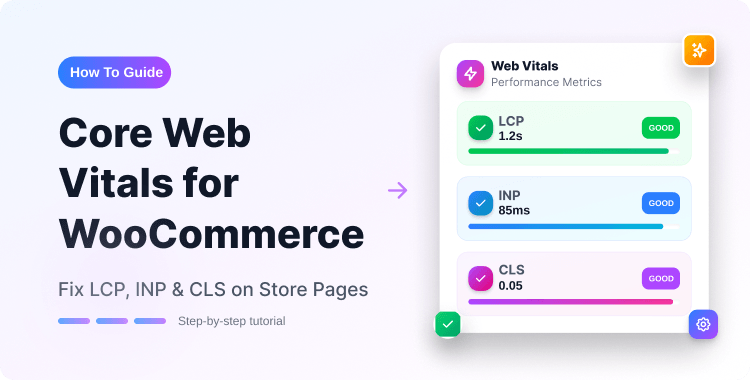
Core Web Vitals for WooCommerce: How to Fix Slow and Heavy Store Pages

Speed isn’t just a technical metric. It’s a sales metric.
Pages that load in 1–2 seconds achieve the highest ecommerce conversion rates, averaging 3.05% — while the average unoptimized product page still takes 6.1 seconds to load (Queue-it Ecommerce Speed Statistics, 2026). Meanwhile, 47% of users expect a page to load in under 2 seconds, and 53% of mobile visitors abandon a site that takes longer than 3 seconds (Polyany.io WooCommerce Speed Guide, 2025).
Core Web Vitals for WooCommerce are the three Google signals that measure exactly this: how fast your store loads, how quickly it responds, and how stable it looks while loading. They directly influence your Google rankings and your buyers’ first impression.
This guide breaks down what each metric means for your store, why WooCommerce sites commonly fail them, and what you can do to fix them, without needing a developer for every step.
TL;DR: Core Web Vitals for WooCommerce cover LCP (load speed), INP (click responsiveness), and CLS (layout stability). The fastest wins: convert product images to WebP, disable lazy loading on hero images, defer cart fragment scripts, and set explicit dimensions on every image. Use PageSpeed Insights to check your current scores.
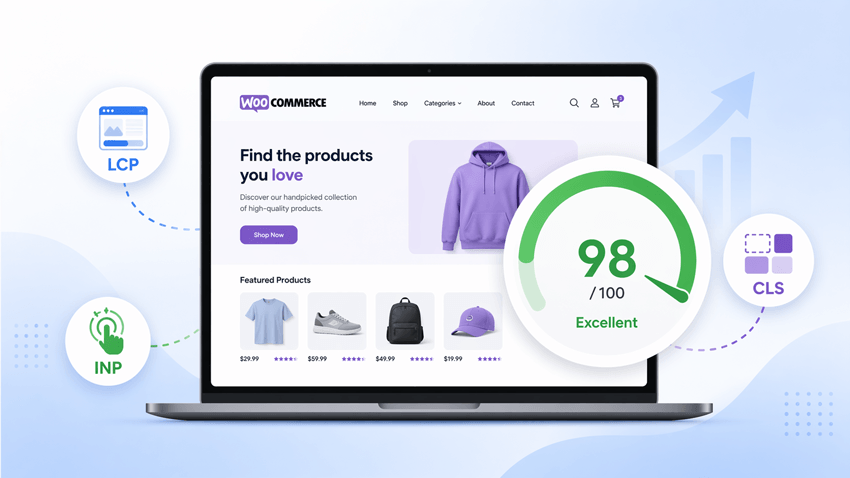
Table of Contents
What Are Core Web Vitals? (Plain-Language Definitions for Store Owners)
Core Web Vitals are three performance metrics Google uses to measure real-world user experience. They became official Google ranking signals in 2021 and were updated in March 2024 when INP replaced FID as the responsiveness metric (Google Search Central, 2023).
In 2026, Core Web Vitals remain a confirmed Google ranking signal — and they act as a tiebreaker in competitive niches where content quality is equal (White Label Coders, December 2025). That means two stores selling the same products, with similar content, will be separated in rankings by their performance scores.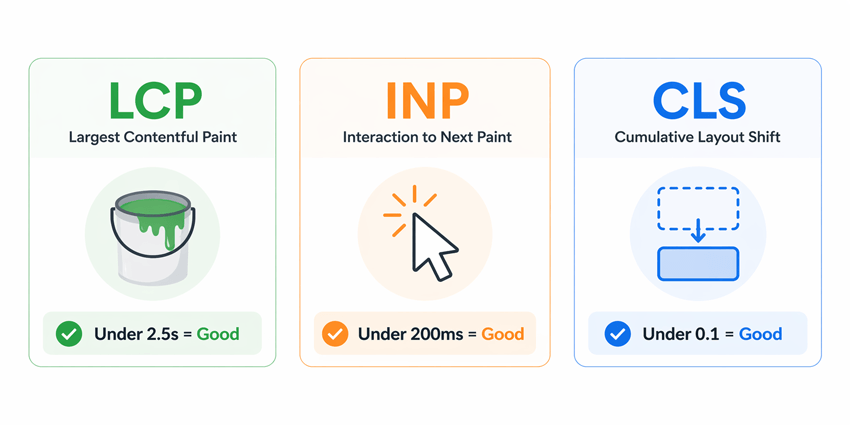
Here’s what each metric means in plain store terms:
LCP – Largest Contentful Paint
“How fast does my main product image show up?”
LCP measures how long it takes for the largest visible element on the page to load — usually your hero image or featured product photo.
- Good score: Under 2.5 seconds
- Needs improvement: 2.5–4.0 seconds
- Poor: Over 4.0 seconds
On WooCommerce product pages, the main product image almost always becomes the LCP element. A slow LCP means buyers stare at a blank or half-loaded page before they can even see what you’re selling.
See More: Top WooCommerce Best Practices for Speed and Performance
INP – Interaction to Next Paint
“How fast does my store react when someone clicks something?”
INP replaced First Input Delay (FID) as a Core Web Vital on March 12, 2024 (Search Engine Land, 2023). It measures how quickly your store responds to every interaction — clicks, taps, and key presses — across the entire page session.
- Good score: Under 200ms
- Needs improvement: 200–500ms
- Poor: Over 500ms
For WooCommerce, heavy cart fragment scripts, live search plugins, and third-party chat widgets are the most common INP killers. Every unnecessary script that runs on the main thread slows down how fast your store feels.
CLS – Cumulative Layout Shift
“Does my page jump around while it’s loading?”
CLS measures unexpected layout shifts — when elements move after the page starts rendering. Think of an “Add to Cart” button that jumps just as a buyer is about to click it.
- Good score: Under 0.1
- Needs improvement: 0.1–0.25
- Poor: Over 0.25
On WooCommerce stores, promotional banners, review widgets, and product images without defined dimensions are the top CLS culprits.
Why WooCommerce Stores Struggle with Core Web Vitals
WooCommerce is powerful – but it’s built for merchandising, not minimalism. Most WooCommerce stores run more scripts, load more media, and handle more dynamic content than a standard blog or portfolio site.
Here’s where each page type typically fails:Page Type Primary CWV Failure Main Cause Product pages LCP Large hero images, delayed image discovery Category pages CLS + INP Dynamic product grids, filter JavaScript Homepage LCP + CLS Hero sliders, promotional banners Checkout pages INP Form validation, payment widgets Search results CLS + INP Dynamic content loading, filter interactions
Add a heavy theme, a page builder loading scripts it isn’t using, and three or four marketing plugins, and your scores drop fast.
How to Fix LCP on WooCommerce Product Pages
LCP is usually the first score store owners see flagged in PageSpeed Insights. The good news: the fixes are straightforward.
1. Convert Product Images to WebP
WebP images are 25–35% smaller than JPEG at the same quality. Smaller images load faster, and LCP improves directly.
- Use a plugin like ShortPixel or Imagify to bulk-convert existing images to WebP.
- Enable WebP delivery in your caching plugin (WP Rocket, LiteSpeed Cache, or W3 Total Cache all support this).
- Set image quality between 75–85% — the visual difference is unnoticeable to buyers.
2. Disable Lazy Loading on Above-the-Fold Images
Lazy loading tells the browser to wait before loading images. That’s useful for images lower on the page, but it actively harms your LCP score when applied to the main product image.
- In WooCommerce, the featured product image is almost always above the fold.
- Add fetchpriority=”high” and remove loading=”lazy” from your main product image template.
- If you’re using a page builder, check whether it applies lazy loading globally, and disable it for hero or featured images.
3. Use a Fast Hosting Environment
No amount of image optimization overcomes slow server response times. Look for a host with Time to First Byte (TTFB) under 200ms. Managed WooCommerce hosts like Kinsta, WP Engine, and Cloudways are worth the upgrade if you’re on shared hosting.
4. Enable a Content Delivery Network (CDN)
A CDN serves your images and static files from servers closest to your buyer’s location. Cloudflare’s free plan is a solid starting point for most WooCommerce stores.
How to Fix INP on WooCommerce Store Pages
INP is often harder to diagnose because it measures responsiveness across all interactions — not just the first click. WooCommerce sites are especially prone to poor INP scores because of how many scripts run on the main thread.
1. Delay Non-Essential JavaScript
Scripts like live chat widgets, marketing pixels, and analytics trackers don’t need to load at the same time as your product content. Delaying them keeps the main thread free for user interactions.
- Use WP Rocket’s “Delay JavaScript Execution” feature to defer non-critical scripts until user interaction.
- Alternatively, use the free Async JavaScript plugin to add defer or async attributes to specific scripts.
2. Fix WooCommerce Cart Fragments
By default, WooCommerce makes an AJAX request on every page load to update the cart count. This blocks other scripts from running and is one of the most common INP issues on WooCommerce sites.
- If you’re not using a persistent cart feature, disable cart fragments via a plugin like Disable Cart Fragments (free on WordPress.org).
- Or configure your caching plugin to exclude the cart fragment endpoint from caching rules.
3. Audit and Remove Unused Plugins
Every active plugin adds JavaScript to your store – even if the plugin isn’t doing anything on a specific page. Run a plugin audit quarterly:
- Deactivate plugins one by one and re-run PageSpeed Insights to identify which ones impact your INP score most.
- Replace multi-feature plugins with focused, lightweight alternatives where possible.
How to Fix CLS on WooCommerce Store Pages
Layout shifts frustrate buyers and hurt conversions. Fixing CLS is mostly about telling the browser exactly how much space each element needs before it loads.
1. Set Explicit Dimensions on All Product Images
If your product images don’t have defined width and height attributes in the HTML, the browser doesn’t know how much space to reserve. The image loads in and pushes everything else down.
- WooCommerce’s default image output includes dimensions, but many themes and page builders override this.
- Audit your product image markup and confirm that width and height are set on every <img> tag.
2. Reserve Space for Ads and Promotional Banners
Banners and ad slots that load after the initial render are major CLS contributors.
Fix this by:
- Setting a fixed min-height on banner containers so the layout doesn’t shift when content loads in.
- Avoiding banners that load via JavaScript after the page is visible.
3. Control Review Widget and Plugin Loading
Review widgets (Trustpilot, Google Reviews, Yotpo) often inject content after the DOM loads. This causes visible layout shifts on product pages.
- Load review widgets below the fold where possible.
- If you must load them above the fold, set a reserved container height so the surrounding content doesn’t move.
The Page Builder Problem, and How to Choose Wisely
Page builders are one of the biggest contributors to poor Core Web Vitals on WooCommerce stores. Most traditional builders load their entire CSS and JavaScript library on every page, even when only one or two widgets are actually used on that page.
This is sometimes called “div soup,” layers of wrapper divs, inline styles, and global scripts that add significant weight to every page request.
Before choosing or sticking with a page builder, evaluate it against these performance criteria:
- Asset loading behavior: Does it load its full library globally, or only what each page uses?
- Render-blocking scripts: Are scripts loaded asynchronously or deferred by default?
- HTML output quality: Minimal wrapper divs and semantic markup reduce page weight.
- Lazy loading controls: Can you disable lazy loading for above-the-fold elements specifically?
- Plugin compatibility: Does it conflict with popular caching or optimization plugins?
If you’re already using a page builder and your scores are suffering, check how much unused CSS and JavaScript it’s loading via the Coverage tab in Chrome DevTools. If more than 50% of the loaded scripts and styles go unused on a given page, your builder is a primary contributor to your poor scores.
Switching to a lighter builder or pairing your current one with a dedicated optimization plugin like WP Rocket or Perfmatters is often more effective than trying to patch individual issues one by one.
More Details: Elementor vs Gutenberg for WooCommerce: Which Is Better for Speed?
Tools to Diagnose Core Web Vitals on Your WooCommerce Store
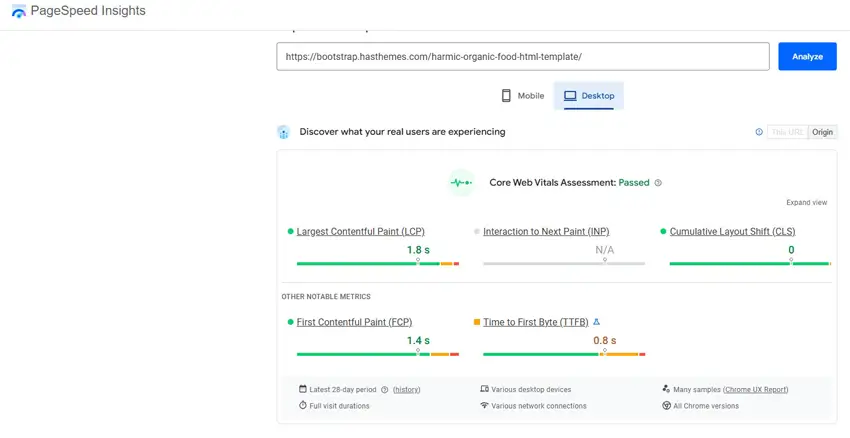
You don’t need to guess what’s slowing your store down. These tools give you exact data:
Google PageSpeed Insights
- Free, instant analysis at pagespeed.web.dev
- Shows LCP, INP, and CLS scores for both mobile and desktop.
- Highlights specific elements causing each issue.
- Uses real-world field data (Chrome UX Report) + lab data.
Google Search Console
- Go to the Core Web Vitals report under Experience.
- Shows which URLs on your store have poor or needs-improvement scores.
- Groups URLs by issue type so you can prioritize fixes systematically.
Chrome DevTools – Performance & Coverage Tabs
- Performance tab: Record a page load and see exactly what’s blocking the main thread.
- Coverage tab: Identify unused JavaScript and CSS loaded on any given page.
WebPageTest
- Free at webpagetest.org
- More detailed waterfall analysis than PageSpeed Insights.
- Useful for diagnosing TTFB and third-party script impact.
A Practical Workflow: Auditing and Fixing Your WooCommerce Store
Here’s a simple workflow to go from diagnosis to fixes without getting overwhelmed:
- Run PageSpeed Insights on your most important pages: homepage, top product page, category page, and checkout.
- Note your three scores: LCP, INP, and CLS for mobile and desktop separately.
- Prioritize mobile: Google uses mobile-first indexing, so mobile scores matter more for rankings.
- Fix LCP first: Convert images to WebP, disable lazy loading on the hero image, and check hosting speed.
- Fix INP next: Delay non-essential scripts, disable cart fragments if unused, and audit plugins.
- Fix CLS last: Set image dimensions, reserve ad/banner space, and audit review widgets.
- Re-run PageSpeed Insights after each fix to confirm improvement.
- Check Search Console weekly to track field data improvement over 28 days.
Quick Fix Checklist
LCP
- Product images converted to WebP.
- Lazy loading disabled for above-the-fold images.
- fetchpriority=”high” set on the main product image.
- Hosting TTFB under 200ms.
- CDN enabled for static assets.
INP
- Non-essential JavaScript deferred until interaction.
- WooCommerce cart fragments are disabled or limited.
- Unused plugins removed or replaced.
- Third-party scripts (chat, pixels) are loaded asynchronously.
CLS
- Explicit width and height are set on all product images.
- Fixed min-height on all banner and ad containers.
- Review widgets loaded below the fold or with reserved space.
See More: 16 Simple Hacks to Instantly Speed Up Your WordPress Website
Frequently Asked Questions
What are Core Web Vitals for WooCommerce?
Core Web Vitals for WooCommerce are three Google performance metrics, LCP, INP, and CLS, that measure how fast your store loads, how quickly it responds to clicks, and how stable the layout is during loading. They influence both Google rankings and user experience directly.
What is a good LCP score for a WooCommerce store?
A good LCP score is under 2.5 seconds. WooCommerce product pages often fail this because the main product image, the LCP element, is large, uncompressed, or lazy-loaded when it shouldn’t be.
Did Google change its Core Web Vitals metrics recently?
Yes. On March 12, 2024, Google replaced First Input Delay (FID) with Interaction to Next Paint (INP) as the responsiveness Core Web Vital. INP is a more complete measure; it tracks all interactions during a page visit, not just the first click.
Why does my WooCommerce store fail INP?
The most common causes are WooCommerce cart fragment AJAX requests on every page load, heavy third-party scripts like chat widgets and marketing pixels running on the main thread, and too many active plugins adding JavaScript that isn’t needed on every page.
Does my page builder affect Core Web Vitals scores?
Yes, significantly. Most traditional page builders load their full CSS and JavaScript library on every page, even when only a few widgets are used. A performance-first builder that uses modular asset loading reduces unused JavaScript and CSS, which directly improves LCP and INP scores.
How do I check my Core Web Vitals scores?
Use Google PageSpeed Insights (pagespeed.web.dev) for an instant per-page analysis. Use Google Search Console’s Core Web Vitals report for a site-wide view showing which URLs have poor or needs-improvement scores.
What is CLS, and how does it affect WooCommerce stores?
CLS (Cumulative Layout Shift) measures unexpected layout movement during page load. On WooCommerce stores, the most common causes are product images without set dimensions, promotional banners that load after the initial render, and review widgets that inject content above the fold.
Conclusion
Core Web Vitals for WooCommerce aren’t just a Google checkbox. They’re a direct measurement of how buyers experience your store, and how likely they are to stay, browse, and buy.
The fixes are more actionable than most store owners expect. Start with your product images. Then tackle your JavaScript load. Then lock down your layout stability. Each fix compounds into a measurably faster, more reliable store.
Your page builder, your hosting environment, and your plugin stack all contribute to your scores – not just your images. Treat performance as an ongoing part of your store’s maintenance, not a one-time fix.
Run PageSpeed Insights today on your top product page. One score, one fix, one improvement at a time, that’s how stores consistently earn and hold better rankings.