WCAG 2.2 for WooCommerce: A Practical Accessibility Guide for Store Owners


Running a WooCommerce store means managing products, shipping, payments, and marketing. Accessibility often gets skipped. That’s a mistake, not just ethically, but commercially.
According to the World Health Organization, over 1.3 billion people worldwide live with some form of disability. That is a significant portion of potential customers who may be unable to use your store if it is not built accessibly.
WCAG 2.2, published by the W3C in October 2023, is the current standard for web accessibility. This guide explains exactly what it means for WooCommerce, which new rules matter most, and where to start.
Quick Answer:
WCAG 2.2 is a set of guidelines that helps you make your website accessible to users with disabilities. For WooCommerce stores, the most important areas to fix are keyboard navigation, button sizes, checkout forms, focus visibility, and login flows. You do not need to rebuild your store – most fixes are incremental and have a direct impact on usability and conversions.
Table of Contents
What Is WCAG 2.2?
WCAG stands for Web Content Accessibility Guidelines. It is a set of technical and design standards created by the W3C (World Wide Web Consortium) that defines how to make digital content usable by people with visual, auditory, motor, or cognitive disabilities.
WCAG 2.2 is the latest version. It builds directly on WCAG 2.0 and 2.1, adding nine new success criteria while removing one outdated rule (Criterion 4.1.1 Parsing, which no longer applies to modern browsers).
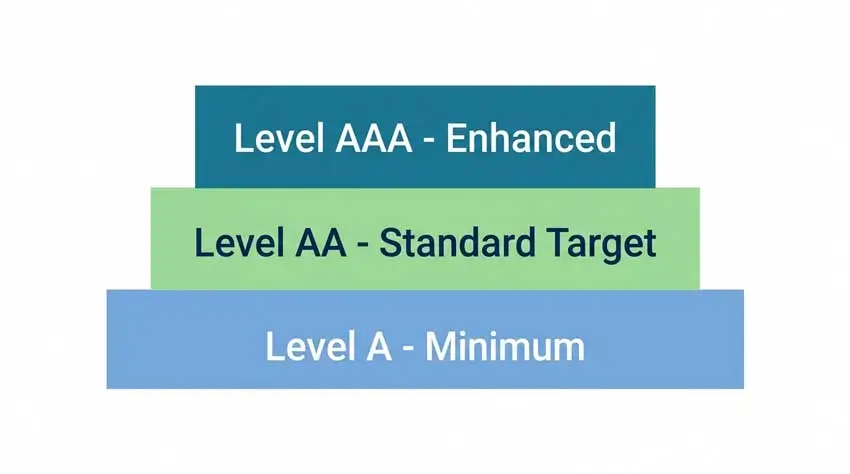
Each guideline has three conformance levels:
- Level A – minimum requirements
- Level AA – the standard most organizations aim for
- Level AAA – the highest level, often impractical to achieve fully
For most WooCommerce stores, Level AA is the practical target.
Why WCAG 2.2 Matters Specifically for WooCommerce
General WCAG guides explain the principles. Most of them stop there. But a WooCommerce store has specific flows that carry real accessibility risk:
- Product browsing – filter systems, variation swatches, image galleries
- Add to Cart interactions – button size, keyboard operability, feedback messages
- Checkout forms – field labels, error handling, step-by-step flow
- Login and authentication – OTP, CAPTCHA, password fields
- Mobile shopping – tap target sizes, zoom behavior, sticky headers
- Order and account management – tables, action buttons, form fields
Each of these is a point where an inaccessible design can block a purchase. That is different from a blog post or a landing page. The stakes for eCommerce accessibility are direct and measurable.
The 9 New Rules in WCAG 2.2 – What They Mean for Your Store
WCAG 2.2 adds nine new success criteria. Not all of them are equally relevant to WooCommerce. Here is a practical breakdown.
1. Focus Not Obscured (Minimum) – Level AA
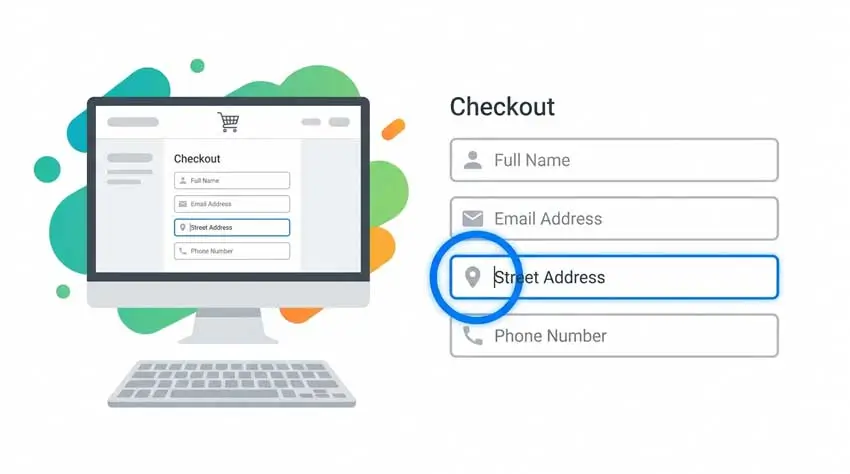
When a user navigates your store with a keyboard, the focused element – the button, field, or link they are currently on – must remain at least partially visible on screen.
WooCommerce risk: Many stores use sticky headers or cookie banners that slide over focused checkout fields, making them invisible to keyboard users.
Fix: Add CSS scroll padding to account for sticky elements. Test by tabbing through your checkout page without a mouse.
2. Focus Appearance (Minimum) – Level AA
The visible outline around a focused element must meet minimum size and contrast requirements. It cannot be invisible or too faint to see.
WooCommerce risk: Many themes and page builders remove focus outlines entirely with outline: none in CSS, which disables keyboard navigation visibility.
Fix: Never remove focus outlines without replacing them with a visible, high-contrast alternative. This applies to every interactive element: buttons, dropdowns, form fields, and links.
3. Target Size (Minimum) – Level AA
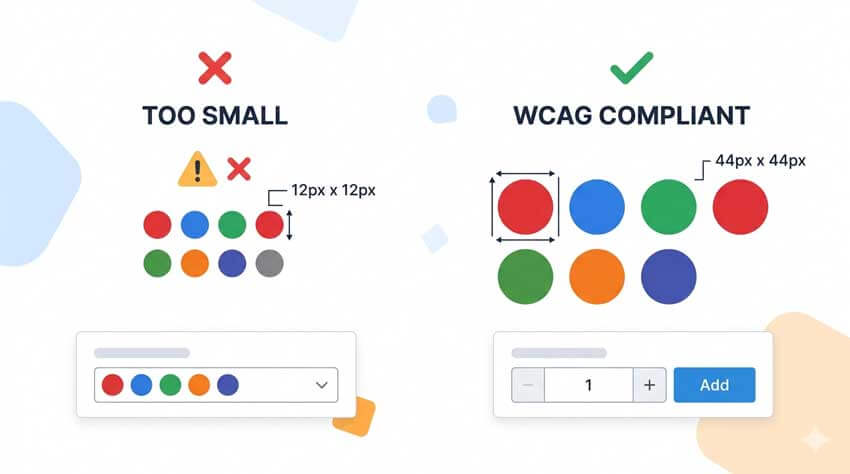
Interactive elements must be at least 24×24 CSS pixels. The target size recommended for good usability is 44×44 pixels (the older iOS Human Interface Guideline standard).
WooCommerce risk: Small variation swatches (color pickers, size buttons), tiny quantity controls, and compact mobile filter buttons frequently fail this criterion.
Fix: Increase the size of swatches, increment/decrement buttons, and filter controls. Pay special attention to mobile breakpoints. Tools like ShopLentor let you customize WooCommerce product layout elements, including swatch sizing and button dimensions, without custom code.
4. Dragging Movements – Level AA
Any functionality that requires dragging must also have a non-drag alternative. For example, a price range slider must also allow direct text input.
WooCommerce risk: Price range filter sliders that only support drag interaction fail this criterion.
Fix: Add min/max text inputs alongside any range slider widget in your filter system.
5. Consistent Help – Level A
If your store has a help mechanism, a live chat widget, a contact link, and an FAQ. It must appear in the same location on every page.
WooCommerce risk: Help links that disappear on checkout pages, or chat widgets that are hidden on mobile, create inconsistency.
Fix: Keep your help mechanism in a consistent position site-wide, including on cart and checkout pages.
6. Redundant Entry – Level A
Users should not have to enter the same information more than once within a single session unless it is essential for security.
WooCommerce risk: Checkout flows that ask for shipping address and then ask for billing address separately — with no “same as shipping” option — violate this.
Fix: Enable the “Ship to a different address” toggle in WooCommerce checkout so billing defaults to the shipping address. Confirm your checkout plugin does not repeat fields unnecessarily.
7. Accessible Authentication (Minimum) – Level AA
Login and verification steps must not rely solely on memory-based challenges. If your store uses CAPTCHA or custom puzzles, an accessible alternative must be available.
WooCommerce risk: Image-based CAPTCHAs, complex puzzle logins, or OTP flows that do not offer copy-paste access create barriers for users with cognitive disabilities.
Fix: Use reCAPTCHA v3 (which is invisible) or ensure CAPTCHA has an audio alternative. Allow users to paste into OTP fields.
8. Focus Not Obscured (Enhanced) – Level AAA
This is the stricter version of criterion 1. The difference: the focused element must be completely visible, not just partially. No sticky header, banner, or overlay can cover any part of it.
WooCommerce risk: Stores with tall sticky headers or persistent cookie banners that partially overlap focused checkout fields fail the minimum criterion (AA). If the overlap completely hides the focused element, it also fails this enhanced criterion.
Fix: The practical approach is the same as criterion 1 – use scroll-padding-top in CSS to push focused elements below fixed headers. Getting this right at the minimum level typically satisfies the enhanced version too.
9. Accessible Authentication (Enhanced) – Level AAA
The stricter version of criterion 7. At the minimum level (AA), authentication must not require memory-based tasks unless an alternative is provided. At the enhanced level, there are no exceptions – authentication cannot rely on memorization, transcription, or cognitive puzzles at all, even with alternatives.
WooCommerce risk: Any login or verification flow that requires a user to solve a puzzle, transcribe distorted text, or remember a security question falls here. This matters most for stores using aggressive anti-bot or fraud protection on account registration.
Fix: Use reCAPTCHA v3 (fully invisible, behavior-based) or passkey/magic link login where possible. If your store uses a security question flow, replace it with email verification.
Common Accessibility Failures in WooCommerce Stores
Even well-designed stores make these mistakes. Run through this list against your own site.
Visual and contrast issues:
- Low contrast between text and background (especially light gray descriptions on white)
- Product image alt text that is missing, empty, or just the filename
- Color-only indicators (e.g., “red means out of stock”) with no text backup
Navigation and keyboard issues:
- Menus that cannot be opened or closed with a keyboard
- Dropdown filters that trap keyboard focus
- Skip-to-main-content link missing from the top of every page
Form and checkout issues:
- Checkout fields without visible labels (using placeholder text as the only label)
- Error messages that say “Invalid input” without explaining what to fix
- Required fields not marked clearly
- Checkout steps that time out without warning
Interactive elements:
- Buttons with no text label (icon-only buttons with no aria-label)
- “Add to Cart” buttons that do not confirm success to screen reader users
- Modals and popups that cannot be closed with the Escape key
- Product carousels that auto-play and cannot be paused
How to Audit Your WooCommerce Store for Accessibility
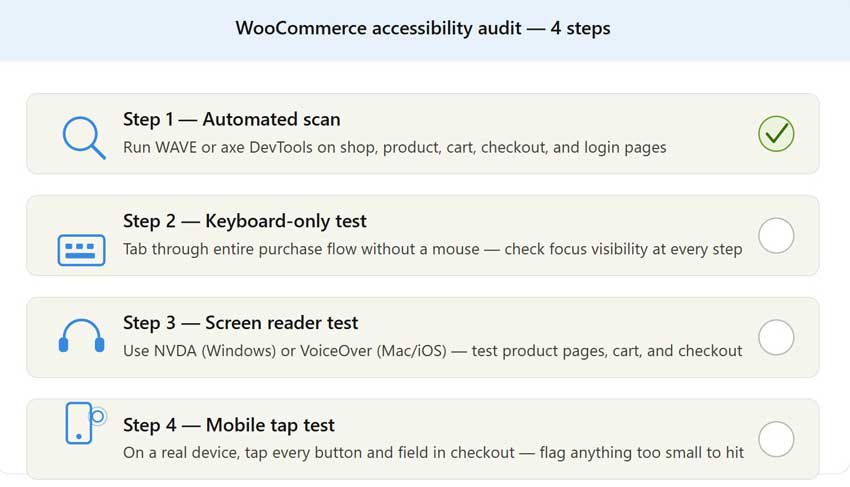
You do not need to hire an accessibility consultant to start. Use these steps.
Step 1: Run an Automated Scan
Use a free tool like WAVE or axe DevTools (browser extension). These catch roughly 30–40% of WCAG issues automatically — contrast failures, missing alt text, unlabeled form fields, and more.
Test these pages specifically:
- Homepage
- Category/shop page
- Individual product page
- Cart
- Checkout
- My Account / Login
Step 2: Do a Keyboard-Only Test
Unplug or disable your mouse. Tab through your entire store. Check:
- Can you reach every link, button, and field?
- Is the focus indicator always visible?
- Can you complete a full purchase without a mouse?
This single test will surface more issues than most automated tools.
Step 3: Test with a Screen Reader
Use NVDA (Windows, free) or VoiceOver (Mac/iOS, built-in). Navigate your product pages and checkout. Listen for:
- Are button labels meaningful? (“Add to Cart” or “Button”?)
- Are form errors announced?
- Is product information read in the right order?
Step 4: Check Mobile Tap Targets
On a phone, go through the checkout flow. Tap every button, field, and control. Flag anything that requires a precise tap or is too small to hit comfortably.
Practical Fixes for WooCommerce Store Owners
These are actions you can take without a full rebuild.
Fix 1: Add a Skip Navigation Link
Add a “Skip to main content” link as the first element in your header. This is invisible until focused, and lets keyboard users skip your nav menu. It is a 5-minute code addition with major impact.
Fix 2: Never Suppress Focus Outlines
Search your theme or child theme CSS for outline: 0 or outline: none. Replace with a styled, high-contrast outline. Example:
:focus-visible {
outline: 3px solid #0056b3;
outline-offset: 2px;
}
Fix 3: Label Every Checkout Field Properly
Every <input> in your checkout must have a <label> element linked to it — not just a placeholder. Placeholders disappear when the user types and are not a substitute for labels.
Fix 4: Add Alt Text to Product Images
In WooCommerce, edit each product and fill in the image alt text field. For variable products, add alt text to each variation image too. Alt text should describe what the image shows, not just repeat the product name.
Fix 5: Use a WooCommerce Page Builder That Supports Accessibility
How you build your product pages matters. ShopLentor (formerly WooLentor) is a WooCommerce-specific page builder that gives you control over product layout elements, including button sizes, swatch displays, and form fields, which are exactly the elements that need accessibility customization. Having direct control over the markup and styles of these elements makes it significantly easier to apply WCAG fixes without fighting your theme’s defaults.
Fix 6: Test and Fix CAPTCHA on Login/Registration
If your store uses a CAPTCHA plugin, check whether it offers an audio fallback and whether users can paste into input fields. Replace image-only CAPTCHA with reCAPTCHA v3 where possible.
Fix 7: Write Clear Error Messages
WooCommerce’s default checkout errors are functional but can be improved. Use a custom checkout plugin or filter hooks to write error messages that explain what went wrong and how to fix it. “Please enter a valid postcode for your billing address” is better than “Invalid field.”
Does WCAG 2.2 Affect Your SEO?
Not directly – Google does not score pages on WCAG compliance. But the overlap is significant:
- Alt text helps both screen readers and image search indexing
- Clear heading structure benefits both accessibility and crawlability
- Faster, cleaner markup from accessible builds tends to improve Core Web Vitals
- Reduced bounce rates from better usability signal content quality
If your accessibility improvements make your store genuinely easier to use, the SEO benefits follow from that – not from ticking WCAG boxes mechanically.
Is WCAG 2.2 Legally Required?
This depends on where your business operates.
- United States: The ADA (Americans with Disabilities Act) applies to websites, and courts have increasingly referenced WCAG as the standard. While there is no law explicitly mandating WCAG 2.2 yet, WCAG 2.1 Level AA is commonly cited in litigation.
- European Union: The European Accessibility Act (EAA) comes into force in June 2025 and requires many commercial websites serving EU customers to meet accessibility standards.
- United Kingdom: Public sector websites must be WCAG 2.2 compliant. Private sector requirements are growing.
For eCommerce stores with an international customer base, the practical position is: WCAG 2.2 AA is the standard you should be working toward, regardless of exact legal requirements in your jurisdiction.
Frequently Asked Questions
What is WCAG 2.2, and when was it released?
WCAG 2.2 is the latest version of the Web Content Accessibility Guidelines, published by the W3C on October 5, 2023. It adds nine new success criteria to the previous WCAG 2.1 standard, focusing on users with cognitive disabilities, limited motor function, and mobile users.
Is WCAG 2.2 compliance legally required for WooCommerce stores?
Not universally, but the legal landscape is moving toward requiring it. In the EU, the European Accessibility Act (EAA) applies to many commercial websites from June 2025. In the US, ADA lawsuits frequently reference WCAG as the standard. If you serve international customers, targeting WCAG 2.2 Level AA is the safe position.
What is the most important WCAG 2.2 fix for a WooCommerce checkout?
Focus on visibility and form labeling. Every checkout field must have a visible label (not just a placeholder), and keyboard users must always be able to see which element they are focused on. These two fixes alone address a large proportion of checkout accessibility failures.
How do I test my WooCommerce store for WCAG 2.2 compliance?
Start with a free automated tool like WAVE or axe DevTools on your key pages (shop, product, cart, checkout). Then do a keyboard-only test tab through your entire purchase flow without a mouse. This is the fastest way to find real blockers.
Does fixing WCAG 2.2 issues improve my WooCommerce SEO?
Indirectly, yes. Accessibility fixes like proper alt text, logical heading structure, and clean markup overlap significantly with SEO best practices. Better usability also lowers bounce rates and improves time on site, which are positive signals.
What WCAG 2.2 level should a WooCommerce store target?
Level AA is the standard target. It covers the nine new criteria that matter most for eCommerce, including focus visibility, button size, authentication accessibility, and form usability. Level AAA is largely optional and difficult to achieve fully in a commercial store context.
How does ShopLentor help with WooCommerce accessibility?
ShopLentor gives you granular control over WooCommerce product page elements, button sizes, swatch displays, form fields, and layout structure. That control matters for accessibility because WCAG issues in WooCommerce often come from tightly constrained default templates. Being able to directly adjust these elements makes it easier to meet size, contrast, and labeling requirements without fighting your theme.
Conclusion
Accessibility is not a separate project you do after launch. It is part of building a store that works for every customer.
WCAG 2.2 is practical. Most of its new requirements, visible focus indicators, appropriately sized buttons, accessible checkout forms, and non-reliant CAPTCHA are things that improve the experience for all users, not just those with disabilities.
Start with an automated scan of your checkout and product pages. Run a keyboard-only test. Fix the issues that block purchases first. Then work through the rest incrementally.
A WooCommerce store that passes WCAG 2.2 Level AA is a store that is genuinely easier to shop from – and that shows up in your conversion rate, your cart abandonment, and your customers’ trust.