How to Add Widgets to WordPress: A Comprehensive Tutorial

Would you like to learn how to add widgets to your WordPress site? This tutorial will walk you through the process with easy-to-follow instructions and clear answers to common questions. By the end, you’ll be able to customize your site layout and functionality using WordPress widgets.
Widgets in WordPress are beginner-friendly tools that let you add content and features to your site’s sidebars, footers, and other widget-ready areas. The platform provides a simple drag-and-drop interface, along with several pre-installed widget options in the default dashboard.
Although widgets may seem confusing at first, they are easy to use once you understand the basics. In fact, over 43% of WordPress websites actively use widgets to display recent posts, contact forms, menus, and more.
- Key Takeaways
- Overview of Widgets and What They Do
- Why Do You Need to Add Widgets to WordPress Page or Post
- How to Add Widgets to WordPress: Steps
- Different Types of Widgets You Can Use in WordPress
- Tips for Choosing the Right Widget for Your Site
- Frequently Asked Questions About Adding Widgets to WordPress
- Conclusion
Key Takeaways
- Choose widgets that align with specific website goals.
- Customize widget appearance to match your site’s design.
- Consider mobile responsiveness when implementing WordPress widgets.
- Balance widget functionality with overall website performance needs.
Overview of Widgets and What They Do
Widgets play a crucial role in enhancing your website’s functionality and design. These small elements allow you to add useful features such as recent posts, search bars, contact forms, and more.
They are typically placed in widget areas — specific sections of your website’s template like the sidebar or footer — to help organize content and improve user navigation. WordPress offers a user-friendly drag-and-drop interface, making it simple to manage widgets without needing any coding knowledge.
Widgets enable you to display custom content, including text, images, videos, and social media icons. With just a few clicks, you can enhance the look and usability of your site.
Widget areas are built into many WordPress themes, allowing you to easily position widgets throughout your website’s template. Most modern themes automatically enable these areas during installation.
For example, WooCommerce widgets allow you integrate powerful eCommerce features like product categories, filters, or shopping carts directly into your store pages.
As WordPress evolves, widget functionality continues to expand. Developers frequently create custom widgets tailored to specific business needs, giving you even more control over your site’s layout and features.
Why Do You Need to Add Widgets to WordPress Page or Post
Adding widgets to WordPress pages or posts provides a great way to improve user experience. Widgets can help you highlight important contenton your WordPress site. You can showcase products and services using them.
You can also share special offers with your visitors. The right widget adds helpful custom functionality. It makes it easier for users to find what they need.
Adding widgets to WordPress pages or posts can enhance the functionality and user experience of your website in several ways:
Increased Interactivity
Widgets allow you to add interactive elements to your pages or posts, encouraging visitor engagement and interaction. You can add a comment widget to encourage visitors to join discussions on your site.
A social media widget lets users easily share your content across platforms. Including social media icons provides quick access to your profiles. You can also use a form widget to collect feedback or inquiries from visitors.
Easy Content Organization:
To add a widget to WordPress page content, you’ll need specialized plugins. These tools expand widget placement beyond traditional sidebars. Widgets help you organize and structure your content effectively.
You can use widgets to create sidebars footers, or other widget areas. These areas display extra information, navigation menus, related posts, or calls to action. This improves navigation and helps visitors find relevant content more easily.
Enhanced User Experience:
By adding widgets, you can enhance the overall user experience of your website. The widgets offer quick access to essential information, including recent posts, popular articles, and upcoming events. They make it easier for visitors to navigate, discover content, and engage with your website.
Customization and Personalization:
Widgets offer customization options, allowing you to tailor the appearance and functionality of your website. You can choose from a wide range of widgets, including text widgets, image galleries, video players, and more, to create a unique and personalized experience for your visitors.
Integration of Third-Party Services:
Many widgets integrate seamlessly with third-party services, such as email marketing platforms, social media networks, or e-commerce tools.
This helps you extend the functionality of your WordPress site. It allows you to connect with other systems to improve marketing and sales.
- Flexible Layout Design: Add custom Widgets to give you flexibility in designing the layout of your pages or posts. With drag-and-drop functionality, you can easily place widgets in different areas and customize their arrangement. This empowers you to create dynamic and visually appealing content layouts without requiring coding knowledge.
- Seamless Updates and Maintenance: Widgets are managed through plugins and do not affect your core website structure. You can modify or replace them without disrupting your content or design.
Widgets help organize content and improve user experience on WordPress pages or posts. They also extend functionality and let you customize your site for audience needs.
ShopLentor – WooCommerce Builder for Elementor & Gutenberg
A versatile page builder to build modern and excellent online stores with more than 100k Active Installations.
How to Add Widgets to WordPress: Steps
You can add widgets to WordPress website without using any additional WordPress plugins or third-party tools since they are already built-in features.
To add widgets to WordPress, you have two options: you can either use the Drag-and-Drop feature or Choose a sidebar or footer from the widget drop-down. There are Examples of both methods shown below.
Drag-and-Drop feature
To add sidebar widget WordPress using the drag and drop feature, follow these steps:
Go to Appearance and click on Widgets from your WordPress Dashboard.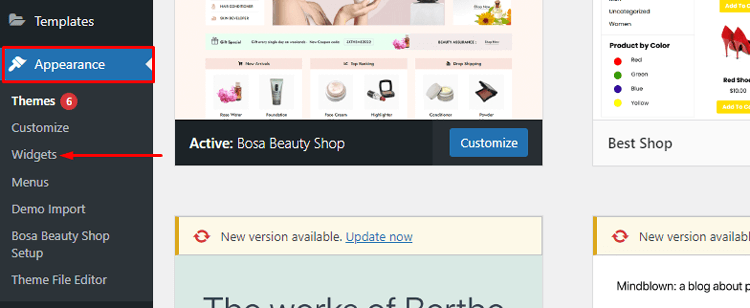
Choose the widget that you want to add. Drag the selected widget to the sidebar and drop it into the box.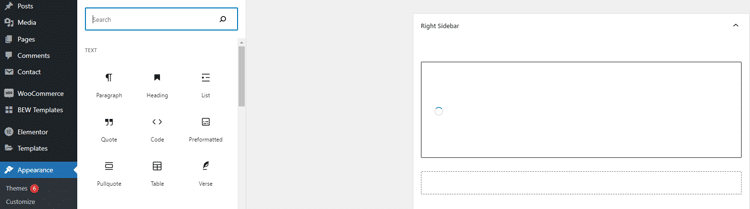
Choose a sidebar or footer
To add a widget to multiple sidebars or footers across different pages, select them from the widget drop-down menu and apply. Follow these steps:
Go to Appearance and then Widgets from your WordPress Dashboard.
Locate the widget you wish to add and click on it.
Click the arrow on the right-hand side of the widget to open the dropdown menu. Select the sidebar or footer where you want to add the widget. 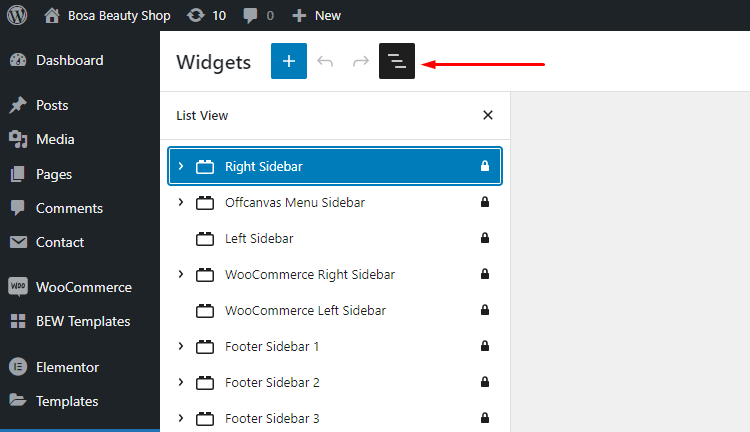
Click on Add Widget style=”font-size: 1.125rem; font-weight: 400;”>.
Different Types of Widgets You Can Use in WordPress
WordPress offers various types of widgets to enhance the functionality and features of your website, ranging from simple text to complex interactive elements.
If you want to know how to use widgets in WordPress properly. You must know the types of widget and how they solve specific functionality needs for your website
Here are some common types of widgets you can use:
Text Widget:
The Text Widget allows you to add custom text, HTML code, or media to widget areas. It’s useful for adding plain text, links, images, or embedding videos or other media content.
Recent Posts Widget:
This widget displays a list of your most recent blog posts. It helps visitors discover and navigate your latest content easily.
Categories Widget:
The Categories widget provides a list of categories used to organize your blog posts. It enables visitors to filter and browse specific topics or content types.
Tag Cloud Widget:
This widget displays a visual representation of your post tags in a cloud-like format. It allows visitors to click on tags and explore related content.
Archives Widget:
The Archives widget lists your blog posts based on month and year. It helps users navigate through your content chronologically.
Search Widget:
The Search widget adds a search bar to your website, allowing visitors to search for specific content or keywords within your site.
Calendar Widget:
The Calendar widget shows a calendar with highlighted dates for published posts. Visitors can click on the dates to view posts published on those days.
Custom Menu Widget:
This widget allows you to display a custom menu in widget areas. You can create menus and add links to specific pages, categories, or custom URLs.
Social Media Widgets:
Social media widgets enable you to integrate social media profiles, buttons, or feeds and add social media icons to your website. They encourage visitors to engage with your social media presence.
Tagged Posts Widget:
This widget displays posts that are tagged with a specific tag or set of tags. It helps highlight content related to specific topics or keywords.
Image Gallery Widget:
The Image Gallery widget allows you to create and display image galleries within a widget area. You can add multiple images and customize the gallery’s layout and settings.
Popular Posts Widget:
This widget shows a list of your most popular posts based on metrics like views, comments, or shares. It helps highlight your top-performing content.
RSS Feed Widget:
The RSS Feed widget displays the latest posts or updates from external RSS feeds. It’s useful for showcasing content from other websites or blogs.
Video Embed Widget:
This widget enables you to embed videos from platforms like YouTube, Vimeo, or self-hosted videos directly into your widget areas.
WordPress offers a wide range of useful widgets for different purposes. Available widgets may vary depending on your active theme and plugins. You can also access more widgets by using widget plugins or custom options.
Tips for Choosing the Right Widget for Your Site
There are many widget options available for WordPress users. Choosing the best one can feel overwhelming. Focus on the widget’s purpose and features to find the right fit.
Before adding a widget to WordPress areas, consider user navigation patterns. Practical strategies to add widgets to WordPress prioritize mobile responsiveness. Analyze your visitors’ behavior to determine optimal widget positioning.
Here are some tips to help you choose the right widget for your website.
Define Your Goals
Clearly identify the goals and objectives of your website. Determine what specific functions or features you want to provide to your visitors.
For example, if you want to increase social media engagement, look for social media widgets that encourage sharing and following.They help improve your site’s interaction and visibility.
Understand Your Audience
Consider your target audience’s needs, preferences, and behaviors. Think about the information or tools they might find useful or engaging. For instance, if your audience consists of avid readers, a recent articles or popular posts widget could be valuable.
Keep it Relevant
Choose widgets that align with the content and purpose of your website. Ensure that the widgets you select complement your website’s overall theme and don’t distract from your core message.
Prioritize Usability
Opt for widgets that are intuitive and easy to use. Consider the user experience and ensure that the widget’s functionality is clear and straightforward. Avoid overwhelming visitors with too many widgets or complex interfaces.
Consider Performance:
Widgets can affect your website’s loading speed. Choose widgets that are optimized for performance to prevent any negative impact on user experience. Look for lightweight widgets that load quickly and don’t cause unnecessary delays.
Test Responsiveness
Ensure that the widgets you choose are responsive and adapt well to different screen sizes and devices. Responsive widgets will maintain their functionality and visual appeal across desktops, tablets, and mobile devices.
Check Reviews and Ratings
Before integrating a widget into your site, check reviews and ratings from other users. This can provide insights into the widget’s reliability, ease of use, and customer support. Consider popular and trusted sources for widget recommendations.
Customization Options
Look for widgets that offer customization options, allowing you to tailor their appearance and behavior to match your website’s design. This way, you can ensure consistency and maintain your branding.
Remember, it’s important to strike a balance between providing useful features and avoiding clutter. Adding too many widgets can overwhelm visitors and distract them from your main content.
Regularly evaluate the performance of your widgets. Assess their relevance to your website’s goals. Make adjustments as needed to keep them aligned with your objectives.
HT Mega Elementor Addons
The ultimate Elementor page builder addons to build stunning websites.
Frequently Asked Questions About Adding Widgets to WordPress
Q: Can I add widgets to specific pages or posts?
A: Yes, you can add widgets to specific pages or posts using plugins that offer this functionality. Some page builder plugins or custom widget plugins allow you to add widgets to specific sections or areas within individual pages or posts. By utilizing these plugins, you can have more granular control over widget placement and display.
Q: Can I customize the appearance of widgets?
A: Yes, you can often customize the appearance of widgets. The level of customization depends on the widget itself and the theme you’re using. Many themes provide options to style widgets, such as changing colors, fonts, and layouts.
Additionally, you can use custom CSS to further modify the appearance of widgets to match your website’s design. Some plugins such as the Shoplentor plugin offer over 105 Elementor widgets that can accelerate the customization process of your WooCommerce store.
Q: Are there any recommended widgets for specific purposes?
A: Yes, there are recommended widgets for specific purposes, depending on your website’s needs. Here are a few examples:
- For contact forms: Plugins like Contact Form 7 or WPForms provide widgets for easily adding contact forms to your website.
- For adding media: Media widgets like “Image Gallery,” “Video Player,” or “Audio Player” widgets can be used to showcase multimedia content.
Q: How many widgets can I add to my WordPress website?
A: There is no strict limit on the number of widgets you can add to your WordPress website. However, it’s important to use widgets judiciously to maintain a clean and organized design. Adding too many widgets can clutter your website and overwhelm visitors. Focus on selecting widgets that serve a specific purpose and enhance the user experience.
Q: Can I remove or deactivate widgets?
A: Yes, you can remove or deactivate widgets from your WordPress website. To remove a widget, go to the Widgets page in your WordPress admin dashboard, locate the widget in the widget area, and click on the widget to expand its settings. Then, click the “Delete” or “Remove” button. To deactivate a widget temporarily, you can drag it out of the widget area and drop it in the “Inactive Widgets” section.
Q: Will adding widgets affect my website’s performance?
A: Generally, widgets themselves do not significantly impact website performance. However, using too many widgets or poorly coded widgets can affect the loading speed of your website. It’s recommended to choose lightweight widgets, optimize their settings, and regularly monitor your website’s performance to ensure a smooth user experience.
Conclusion
Now that you’ve learned how to add widgets to WordPress, it will be even easier for you to create a unique and eye-catching website. Adding the right plugins, widgets, and modules can help bring your website up to its full potential.
From customizing social media feeds to adding forms and other interactive components, the possibilities are truly endless. Whether you are creating a brand new site or revamping an existing one, adding widgets is definitely something to consider.
With the tips mentioned here, we hope that you now have a better understanding of how to add widgets to WordPress and ensure that they appear correctly on all devices.
Mastering the technique of how to add a widget in WordPress enhances your site’s functionality and user experience. As you explore widgets in WordPress, you’ll discover powerful customization capabilities.