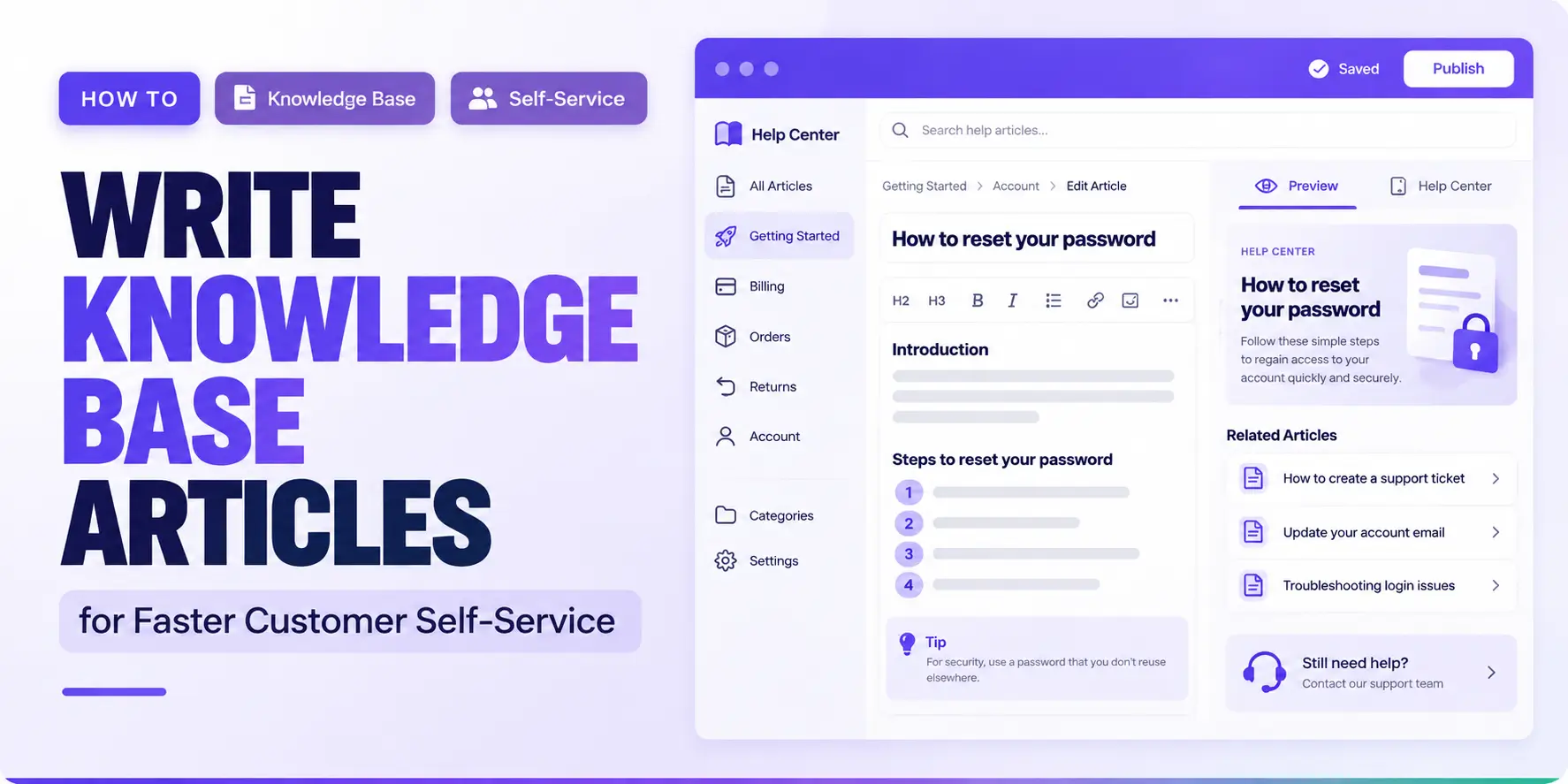
How to Write Knowledge Base Articles for Faster Customer Self-Service

Customers usually open a knowledge base because they want to solve something right now, not read a product overview.
If the title doesn’t match what they searched, the answer is buried three paragraphs down, or the steps don’t match what they see on screen, even technically correct documentation fails them, and they end up filing a ticket anyway.
Learning to write knowledge base articles well means treating every article as a small self-service tool, not just a page of correct information. That takes findability, clarity, actionability, accuracy, organization, and a habit of continuous improvement.
A well-built customer support knowledge base makes all of this possible at scale, but the writing quality of each article is what actually determines whether customers solve their own problem.
Quick Answer: A good knowledge base article solves one customer problem, states the answer before the background, and breaks the fix into scannable numbered steps written in the customer’s own words. It includes only the screenshots that reduce confusion, lists prerequisites and expected results, and gets reviewed for accuracy before publishing. Categories, tags, and analytics keep it discoverable and let you improve it as customer needs change.
Table of Contents
What Makes a Knowledge Base Article Effective?
There’s a real difference between content that merely contains information and content that helps a customer finish a task. An article can be factually correct and still fail if the customer can’t find it, can’t follow it, or gives up halfway through.
Effective articles share a few traits:
- Findability: the title and keywords match how customers actually search
- Clarity: instructions use plain, specific language instead of vague direction
- Relevance: the article addresses one real customer problem, not a general topic
- Actionability: the customer knows exactly what to click, type, or check
- Scannability: headings and short steps let readers jump to what they need
- Accuracy: every instruction matches the current product interface
- Freshness: the article gets revisited when the product or workflow changes
Documentation built around these traits is the foundation of self-service support, where customers resolve issues without waiting on a support queue.
How to Write Knowledge Base Articles That Help Customers Find Answers Faster
This is the core workflow. Follow it article by article rather than trying to overhaul an entire knowledge base at once.
1. Start With One Customer Problem
Each article should solve one primary task, question, or issue — not a category of related settings. Good topic ideas usually come from real signals: support tickets, recurring customer questions, knowledge base search terms, searches that return no results, chatbot questions, onboarding friction points, and common troubleshooting requests.
Weak: “Account Settings”
Better: “How to Change Your Billing Email”
A broad title like “Account Settings” forces the customer to scan an entire page to find one specific action, which slows self-service instead of speeding it up. A narrow, task-specific title lets them confirm in seconds that they’re on the right page.
2. Write the Title in the Language Your Customers Use
Match the words customers actually type into search boxes, not internal product terminology. If your team calls something a “workspace” but customers say “account,” the title should reflect what the customer knows.
A few practical examples:
- Instead of “Subscription Lifecycle Management,” use “How to Cancel Your Subscription”
- Instead of “Credential Rotation Procedure,” use “How to Reset Your API Key”
- Instead of “Notification Preferences Configuration,” use “How to Turn Off Email Notifications”
Avoid clever or vague titles. A title that requires interpretation adds friction at the exact moment a customer wants a fast answer.
3. Give the Answer Before the Background Explanation
Customers shouldn’t need to read several paragraphs before finding the action they need. For simple questions, state the answer in the first sentence or two. For multi-step procedures, state the expected outcome first, then walk through the steps.
Before: “There are several ways to manage your billing preferences depending on your plan type and account history. Before making changes, it’s worth understanding how billing cycles work…”
After: “To change your billing email, go to Account > Billing > Email Address, update the field, and click Save. Changes take effect on your next billing cycle.”
The “after” version respects the customer’s time and lets them confirm in one glance whether this article solves their problem.
4. Turn the Solution Into Scannable Steps
Once the direct answer is stated, break the actual process into steps a customer can follow without re-reading. Use descriptive headings, numbered steps for anything sequential, bullets for optional choices, and short paragraphs. Stick to one main action per step and use the exact interface labels the customer will see on screen — bold them when it helps the step stand out.
This structure is exactly what Support Genix’s built-in editor is designed for: it lets you write headings, numbered steps, and screenshots directly inside the article without switching tools. You can create Knowledge Base articles in Support Genix using its block editor, then assign a category and tags from the same screen before publishing.
5. Add Screenshots Only When They Reduce Confusion
Screenshots earn their place when a setting is unfamiliar, when several similar controls could be confused, when visual confirmation matters, or when a configuration involves multiple related fields. They’re also useful for troubleshooting, where a customer needs to compare what they see against what’s expected.
Crop out irrelevant interface areas, keep screenshots current with the live product, place each image next to the instruction it illustrates, and write meaningful alt text describing what the image shows. Don’t add a screenshot for an obvious action just to make the article look more thorough — that adds scroll length without adding clarity.
6. Include Prerequisites, Warnings, and Expected Results
Customers need to know what must already be set up before they start, what permissions or integrations they need, and what a successful outcome looks like once they finish a step. Without this, customers either abandon the task partway through or assume something worked when it didn’t.
For example, an integration guide should tell users what must be configured before they start and what successful completion looks like, such as a confirmation message or an active connection status.
7. Organize Related Articles With Categories and Tags
Writing a great article isn’t enough if customers can’t find related content once they land on it. Categories group broad topics — billing, account setup, integrations — while tags are narrower descriptors that connect articles across categories, like “API” or “email notifications.”
Support Genix lets you organize Knowledge Base categories and tags directly from its settings, including optional parent categories for subtopics, custom slugs, and colors for quick visual scanning. Keep the taxonomy lean — a handful of clear categories works better for customers than dozens of overlapping ones.
8. Keep Your Knowledge Base Structure Predictable
Consistent, predictable URLs help both customers and the people maintaining the knowledge base understand where content belongs. Support Genix allows you to configure Knowledge Base URLs and archive settings, including the documentation archive slug, individual article slug format, and separate category and tag URL bases. This is an organizational and usability decision — changing a slug does not by itself improve search rankings.
If your team manages who can edit these settings, Support Genix’s access and permissions controls let administrators decide which roles can write documentation, view analytics, or change core configuration like slugs and categories.
9. Check Accuracy Before You Publish
Before an article goes live, run through a short review:
- Are the instructions still correct for the current product version?
- Do the interface labels match what’s actually on screen?
- Are screenshots current?
- Are prerequisites included?
- Is any step missing or out of order?
- Could a first-time user follow this without extra help?
- Does the title accurately describe the problem it solves?
- Is the direct answer easy to find near the top?
- Are related articles linked where they’d genuinely help?
This step matters more than it seems. An outdated or inaccurate article doesn’t just fail to help — it actively erodes trust in the rest of the knowledge base.
How to Use AI to Write Knowledge Base Articles Faster
AI is a strong drafting assistant, but it should never be treated as the final source of truth. The principle to hold onto: AI drafts, humans verify.
AI is genuinely useful for generating an initial outline, turning verified notes or support responses into a documentation draft, simplifying overly technical instructions, keeping structure consistent across many articles, rewriting unclear passages, suggesting headings, and producing an initial FAQ list to expand on.
AI should not be trusted to invent settings, guess at UI paths it hasn’t been given, assume a feature exists, create troubleshooting steps that haven’t been verified, fabricate product limitations, or get published without a human reviewing it first. Every AI-drafted instruction needs to be checked against the actual product before it goes live.
A Better AI Prompt for Knowledge Base Writing
A reusable prompt structure keeps AI output closer to what you actually need, and keeps guesswork out of the draft:
Create a knowledge base article about [specific customer problem].
Audience: [customer type]
Goal: Help the reader successfully [desired outcome].Use only the following verified product information:
[paste source information]
Structure:
- Short answer
- Before you start
- Numbered instructions
- Expected result
- Troubleshooting
- Related topics
Requirements:
- Use the exact interface labels provided.
- Keep each step focused on one action.
- Do not invent features, settings, menu paths, or limitations.
- If required information is missing, mark it for review rather than guessing.
- Use concise, customer-friendly language.
For teams building out AI-assisted support workflows more broadly, a set of AI prompt templates for customer service can help standardize prompts across ticket replies, macros, and documentation drafting.
Using Support Genix Write With AI
Support Genix includes a Write With AI feature inside its article editor, connected to OpenAI or Claude once an API key is configured.
You enter a title, optional comma-separated keywords, and an editable prompt (a default prompt is generated automatically but can be modified), with the option to overwrite existing content or insert the draft alongside it. This is where you can set up Write With AI for Knowledge Base articles if you want to accelerate first drafts inside your existing editor.
The generated draft is a starting point, not a finished article. It still needs a human pass to confirm accuracy, match the interface labels customers will actually see, and fill in any details the AI didn’t have.
If you’re building this workflow for a WordPress site from scratch, a broader guide on how to set up a WordPress AI knowledge base covers the full setup beyond individual articles.
Write Knowledge Base Content for Both Customers and AI Support
Well-structured support content now serves two audiences at once: the customer reading it directly, and a support AI retrieving it to answer that same customer’s question in a chat. Both audiences benefit from the same discipline: one clearly defined topic per article, descriptive headings, explicit direct answers, complete instructions, consistent terminology, clear troubleshooting steps, and current information.
Avoid vague phrasing like “click this” without naming the actual control; both a human and an AI system need something concrete to act on.
Support Genix’s AI chatbot pulls its answers directly from your knowledge base. To train the AI chatbot with your Knowledge Base, you publish articles as usual, then enable the chatbot under Configuration.
Once enabled, the chatbot uses your published Knowledge Base articles as source material for customer answers, and the accuracy of its answers depends entirely on how clear and correct that source content is.
If a customer question gets a wrong or incomplete chatbot answer, the fix is to correct the underlying article, not to expect the chatbot to reason its way around inaccurate source material.
For content you want the AI to use internally without showing it on the public-facing knowledge base, Support Genix includes an “Only for Chatbot” checkbox on individual articles, which keeps that content available to the chatbot while hiding it from the frontend.
Some setups also surface knowledge base articles automatically during chatbot conversations or ticket creation; you can enable Knowledge Base article suggestions so customers see relevant articles before they even submit a ticket.
Use Knowledge Base Analytics to Decide What to Improve Next
Documentation isn’t a one-time project — it should evolve based on how customers actually behave once it’s published. Support Genix’s analytics allows you to track Knowledge Base article views and searches, covering total and unique views, returning visitors, satisfaction scores from article reactions, total searches, searches with no results, top search keywords, and, if the chatbot is enabled — chatbot query volume and unanswered questions.Signal What It May Mean What to Do Search with no results Missing content or a terminology mismatch Create a new article or add the missing term to an existing one Frequently searched keyword A recurring customer need Expand coverage and improve that article’s visibility Low satisfaction score Article may be incomplete, unclear, or outdated Manually review and revise the article Unanswered chatbot query Source documentation may be missing or thin Create or expand the relevant article High views paired with poor feedback An important article that isn’t solving the problem well Prioritize it for revision
This data-driven habit turns a knowledge base from a static archive into something that keeps closing the gap between what customers search for and what’s actually available to them.
Knowledge Base Article Template
Use this structure as a starting point for any new article:
Article Title:
Short Answer: (1-2 sentences stating the direct answer or outcome)
Before You Start:
- Prerequisite 1
- Prerequisite 2
- Required permissions or integrations
Step 1:
Step 2:
Step 3: (One action per step, using exact interface labels)Expected Result: (What the customer should see when the task is complete)
Troubleshooting:
- If X happens, check Y
- If Z happens, try this instead
Related Articles:
- [Link to related topic]
Last Reviewed / Updated: [Date]
Common Knowledge Base Writing Mistakes That Slow Self-Service
- Vague titles that don’t state the actual task or problem
- Long introductions that delay the direct answer
- Cramming multiple unrelated problems into one article
- Using unexplained internal jargon customers don’t recognize
- Leaving out prerequisites, so customers get stuck partway through
- Outdated screenshots that don’t match the current interface
- Writing in internal product language instead of customer terminology
- Publishing AI-generated drafts without verifying them against the actual product
- Never reviewing “no results” search data to find missing topics
- Skipping the expected outcome, so customers can’t confirm success
Knowledge Base Publishing Checklist
- The article solves one primary problem
- The title reflects customer terminology
- The answer appears early
- Instructions follow the correct sequence
- Interface names are accurate
- Prerequisites are explained
- Screenshots are current and necessary
- The article has the correct category/tag
- The expected result is clear
- Related documentation is linked where useful
- AI-generated passages were manually verified
Video Presentation:
Create Knowledge Base Articles in Seconds With AI — Support Genix Tutorial
How Support Genix Can Support the Workflow
Support Genix supports several stages of this workflow without changing the writing discipline itself. Its editor handles article creation with headings, lists, images, and category/tag assignment in one place.
Categories and tags keep related documentation organized and easier to browse, while slug and archive settings keep the URL structure predictable. Access and permissions controls let teams decide who can write, edit, and configure documentation.
Write With AI speeds up first drafts using OpenAI or Claude, and the AI chatbot reuses published articles to answer customer questions directly, with an option to keep certain content chatbot-only.
Knowledge Base Analytics, a Pro feature, surfaces views, searches, and satisfaction data to guide what to write or fix next. None of these features replace the editorial judgment behind a well-written article; they simply remove friction from executing it.
You can explore the Support Genix Knowledge Base feature if you’re evaluating a WordPress-based option for this workflow.
Frequently Asked Questions
How do you write a good knowledge base article?
Start with one specific customer problem, title it using the customer’s own words, and state the direct answer before any background explanation. Break the solution into numbered steps with exact interface labels, add screenshots only where they reduce confusion, and review the article for accuracy before publishing.
How long should a knowledge base article be?
There’s no fixed word count — length should match what’s needed to complete the task, no more and no less. A simple setting change might take 100 words, while a multi-step configuration may need several hundred. Cut anything that doesn’t help the customer finish the task.
What should a knowledge base article include?
A clear title, a direct answer near the top, any prerequisites, numbered steps using exact interface labels, the expected result after completion, troubleshooting notes if relevant, and links to closely related articles. Categories and tags help customers discover it afterward.
Can AI write knowledge base articles?
AI can generate useful first drafts, outlines, and structure quickly, but it should never be published without human review. AI can invent settings, menu paths, or limitations it wasn’t given, so every instruction needs to be checked against the actual product before going live.
How often should knowledge base articles be updated?
Review articles whenever the related product feature changes, and periodically check analytics for articles with declining satisfaction or outdated screenshots. There’s no universal schedule — the trigger should be product changes or performance signals, not a fixed calendar.
How do you know which knowledge base articles to create?
Look at recurring support tickets, knowledge base searches that return no results, and chatbot questions the AI couldn’t answer. These signals point directly to gaps between what customers need and what your documentation currently covers.
Can better knowledge base content improve chatbot responses?
Yes – an AI chatbot trained on a knowledge base can only answer as accurately as the source articles it pulls from. Clear, complete, and current documentation directly improves the quality of chatbot answers, while vague or outdated articles limit what the chatbot can reliably say.
Final Word
The goal isn’t to build the largest possible knowledge base — it’s to make each important customer question easier to solve without needing to contact support.
A simple loop keeps that goal on track: listen to what customers actually ask, write knowledge base articles that answer one problem clearly, organize them so they’re easy to find, publish only after a human review, measure how customers actually use them, and improve based on what the data shows.
Tools like Support Genix can support each stage of that loop, but the loop itself is what actually drives faster self-service.