How to Add a Shopify Style Checkout in WooCommerce Using ShopLentor

A long checkout form can make it harder for customers to review their information and complete an order. A Shopify-style checkout organizes contact information, shipping, and payment into a clear sequence that is easier to follow.
ShopLentor (formerly WooLentor) includes a Shopify Style Checkout module that applies this step-by-step flow to a WooCommerce store without custom code. This guide shows you how to install the plugin, enable the module, configure its settings, and test the checkout before going live.
Quick answer: Install ShopLentor, open ShopLentor → Settings → Modules, and enable Shopify Style Checkout. Configure the checkout fields and branding, then test shipping and payment from the storefront. The normal flow has three steps: Information, Shipping, and Payment, but it becomes a two-step Information and Payment flow when the shipping step is hidden, or the cart does not require shipping.
Table of Contents
What Is a Shopify Style Checkout?
A Shopify-style checkout is a focused checkout layout that separates customer information, shipping, and payment into clear steps. Instead of asking customers to work through one long form, it guides them from one stage to the next.
The ShopLentor Shopify Style Checkout module applies this layout to your existing store. It lets you control the logo, logo link, bottom menu, phone and company fields, cart navigation, shipping step, theme header and footer, and checkout labels from one settings panel.
The module changes the checkout presentation and flow. Your products, shipping zones, taxes, payment methods, orders, and other store data continue to be managed through WooCommerce.
If you want to compare this module with another step-based approach, read our guide on creating a multistep checkout for WooCommerce.
Before You Begin
Confirm that WooCommerce is active, at least one product can be added to the cart, and the shipping and payment methods you intend to offer are configured.
Back up your site and test the checkout on a staging environment before changing a live store.
Checkout Block Compatibility
New WooCommerce stores use the Checkout Block by default. When the ShopLentor Shopify Style Checkout module is enabled, it replaces the checkout presentation with its own classic shortcode-based checkout flow.
You do not have to replace the Checkout Block manually before enabling the module. However, extensions built specifically for the Checkout Block may not appear inside this classic checkout flow, so test every checkout-related extension on staging before publishing the change.
Key Checkout Features
Email-First Checkout
The Information step collects the customer’s email before shipping and payment. This gives the checkout a clear starting point and keeps contact information separate from the later order steps.
Clear Checkout Navigation
Buttons such as Continue to Shipping, Continue to Payment, and Return to Cart tell customers what happens next. You can rename supported tab and button labels to match your store’s preferred wording.
Detailed Order Summary
On desktop, the module places the order summary in a separate right-side panel. It shows product thumbnails and quantities, followed by the coupon form, subtotal, shipping, applicable fees or taxes, and the final total.
Focused Layout
The default module layout keeps customers focused on checkout instead of surrounding the form with the full theme layout. If needed, you can display the active theme’s header and footer and hide the duplicate checkout logo.
Mobile-Responsive Flow
The checkout rearranges its content for smaller screens and keeps the steps manageable on mobile devices. For mobile-specific recommendations, read our guide to improving mobile conversions with a Shopify-style checkout.
Default vs. Shopify Style Checkout
| Feature | Standard WooCommerce checkout | ShopLentor Shopify Style Checkout |
|---|---|---|
| Checkout flow | Depends on whether the Checkout Block or classic checkout is assigned; information is generally completed in one continuous checkout view | Separates the process into Information, Shipping, and Payment steps |
| Shipping step | Shipping fields and methods appear as part of the standard checkout structure when required | Shows a dedicated Shipping step only when the cart requires shipping and Hide Shipping Step is off |
| Navigation | Customers complete the checkout in the order presented by the active checkout layout | Uses clear forward and return controls between checkout steps |
| Order summary | Position and presentation depend on the Checkout Block, classic template, and active theme | Uses a separate desktop summary panel with product thumbnails, quantities, coupon entry, subtotal, shipping, fees or taxes, and total |
| Phone and company fields | Availability and behavior depend on the WooCommerce checkout type and other checkout settings | Provides direct switches for showing or hiding the phone and company fields |
| Broader field management | Core options and compatible extensions can control supported checkout fields | The Shopify Style Checkout module controls its listed fields; broader field editing requires other checkout controls or ShopLentor Pro’s Checkout Field Manager |
| Store branding | Styling follows the active theme or Checkout Block settings | Provides module controls for the checkout logo, logo URL, bottom menu, optional theme header and footer, and supported labels |
| Distraction control | The full theme layout may remain visible depending on the checkout configuration | Uses a focused checkout canvas by default and can hide cart navigation |
How to Add Shopify Style Checkout in ShopLentor
Work through the following five steps on a staging site first. After setup, complete the testing checklist before enabling the checkout on your live store.
Step 1: Install and Activate ShopLentor
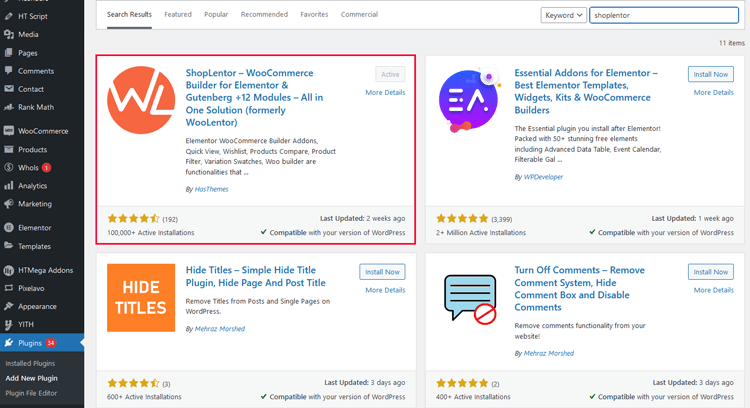
Log in to your WordPress dashboard and go to:
Plugins → Add New Plugin
Search for ShopLentor, click Install Now, and then click Activate. If an onboarding screen appears, complete it or continue to the plugin settings.
The Shopify Style Checkout module is included in the free version of ShopLentor. You do not need ShopLentor Pro to enable this module.
If ShopLentor is already installed, update it and back up the site before continuing.
ShopLentor- WooCommerce Builder for Elementor & Gutenberg
A versatile page builder to build modern and excellent online stores with more than 100k+ Active Installations.
Step 2: Enable Shopify Style Checkout
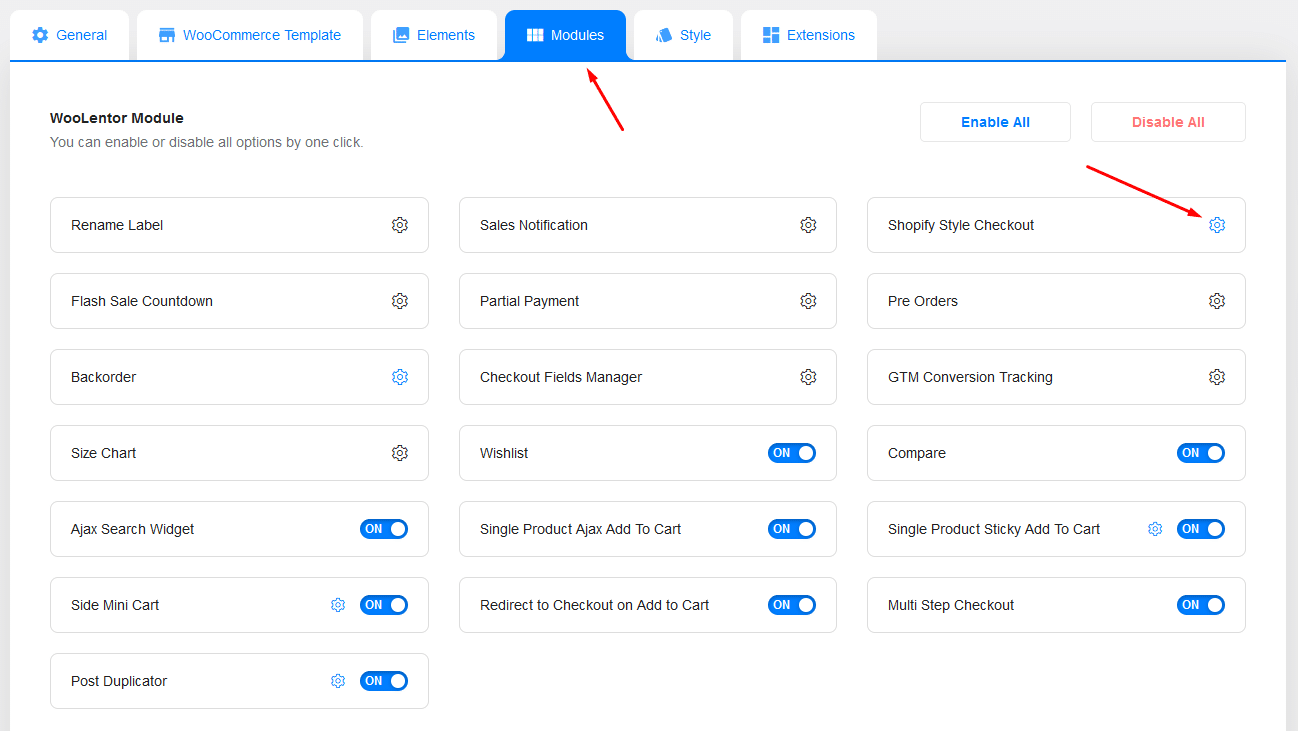
From the WordPress dashboard, go to:
ShopLentor → Settings → Modules
Find Shopify Style Checkout, switch it on, and open its settings. Save the change before previewing the checkout.
Step 3: Configure the Checkout
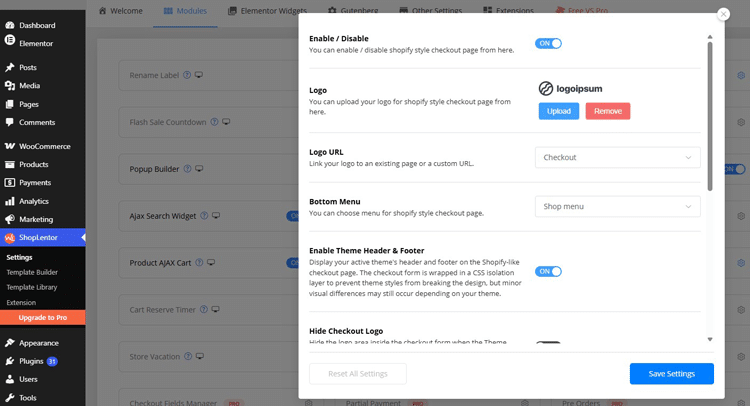
Stay in the Shopify Style Checkout module settings. Configure the options that match your store’s checkout requirements:
- Enable/Disable: Turns the Shopify Style Checkout module on or off.
- Logo: Uploads the logo shown in the checkout area.
- Logo URL: Links the checkout logo to an existing page or a custom URL.
- Bottom Menu: Displays a selected menu containing useful links such as contact, privacy, refund, or support pages.
- Enable Theme Header & Footer: Displays your active theme’s header and footer around the checkout.
- Hide Checkout Logo: Hides the checkout logo when the theme header is enabled, preventing duplicate logos.
- Show Phone Number Field: Displays the phone field when you need a contact number for delivery or order updates.
- Show Company Name Field: Displays the company field when it is relevant to business orders or invoices.
- Hide Cart Navigation: Removes the Cart breadcrumb and Return to Cart link.
- Hide Shipping Step: Removes the dedicated Shipping step.
- Rename Labels: Lets you change supported tab and button labels for the Information, Shipping, and Payment steps.
When Hide Shipping Step is off and the cart requires shipping, customers follow Information → Shipping → Payment. When the option is on—or the cart does not require shipping, the flow becomes Information → Payment.
Use short, action-based button labels. For example, Continue to Shipping tells customers more than a vague label such as Next.
Click Save Changes after configuring the module.
Step 4: Configure and Test Shipping
Go to:
WooCommerce → Settings → Shipping
Confirm that the required shipping zones, methods, and rates are active. The checkout module displays the shipping methods made available by your WooCommerce shipping configuration.
Add a physical product to the cart and open the checkout from the storefront. Enter an address covered by one of your shipping zones, continue to the Shipping step, and confirm that the correct methods and charges appear.
If your store sells only virtual or downloadable products, enable Hide Shipping Step. If you sell both physical and virtual products, test each product type and a mixed cart.
Step 5: Set Up the Payment Gateway
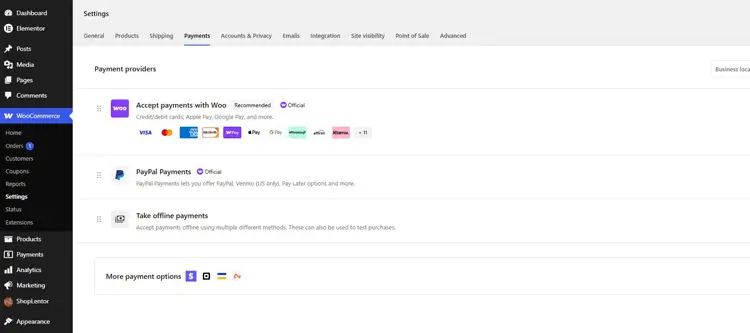
Go to:
WooCommerce → Settings → Payments
Enable and configure the payment methods you want to offer. The Shopify Style Checkout module displays the payment gateways that WooCommerce makes available for the current customer, location, currency, cart, and order total.
Place a test order with every enabled gateway before going live. For each gateway, check:
- The payment method appears when its conditions are met.
- Required checkout fields and error messages work correctly.
- A successful payment creates the order and returns the customer to the correct confirmation page.
- A failed or cancelled payment displays an understandable message and does not create an incorrect paid order.
- The order status, transaction details, stock reduction, and customer and administrator emails are correct.
- Gateway callbacks or webhooks update the order when the gateway uses them.
How to Add a Shopify Style Checkout to WooCommerce | WooCommerce Checkout like Shopify
Next: Improve mobile conversions with a Shopify-style checkout.
You can also review practical ways to reduce cart abandonment in WooCommerce after completing the checkout setup.
Checkout Testing Checklist
Complete these checks on staging and repeat them after moving the setup to your live store:
- Add a simple physical product to the cart and complete an order.
- Test a virtual or downloadable product if your store sells one.
- Test a mixed cart if you sell both physical and virtual products.
- Test guest checkout and registered-customer checkout when both are enabled.
- Confirm that Information, Shipping, and Payment open in the correct order.
- Enable Hide Shipping Step and confirm that the checkout changes to Information and Payment.
- Test separate billing and shipping addresses.
- Use addresses from each important shipping zone and confirm the available methods and charges.
- Apply valid and invalid coupons and check the resulting totals and messages.
- Check the subtotal, shipping, fees, taxes, discounts, and final total.
- Complete a successful sandbox transaction with every enabled payment gateway.
- Test a declined, failed, or cancelled payment where the gateway’s sandbox supports it.
- Confirm that the order status and transaction details are correct.
- Confirm that stock is reduced only when appropriate.
- Check customer and administrator order emails.
- Check the order confirmation page and account order details.
- Confirm that required-field and invalid-field messages are understandable.
- Test the logo, logo link, bottom menu, cart navigation, and renamed labels.
- Review the checkout on desktop, tablet, and mobile screens.
- Test checkout-related extensions, especially extensions designed for the Checkout Block.
- Clear page, object, CDN, and server caches after changing the checkout.
- Repeat checkout tests after updating ShopLentor, WooCommerce, your theme, or a payment extension.
Frequently Asked Questions
Is the Shopify Style Checkout module free?
Yes. The Shopify Style Checkout module is included in the free version of ShopLentor. ShopLentor Pro is not required to enable it.
Do I need a developer?
No. All setup is done in the module settings. No code is needed.
Does the module change my products or orders?
No. It changes the checkout presentation and flow. Products and orders remain managed through WooCommerce.
Can I change the checkout logo?
Yes. Open the Shopify Style Checkout settings and use Logo to upload an image. Use Logo URL to link it to an existing page or a custom address.
Can I hide the phone or company field?
Yes. Open the Shopify Style Checkout settings and switch the Phone Number Field or Company Name Field on or off. Keep the phone field on if you need it for delivery or order updates.
Can I use the module for digital products?
Yes. Turn on Hide Shipping Step so customers move from Information directly to Payment. Test a complete order afterward to confirm that no unnecessary shipping fields or methods appear.
Does it work with the WooCommerce Checkout Block?
The module does not use the Checkout Block. When enabled, it replaces the block-based checkout presentation with ShopLentor’s classic shortcode-based checkout flow. Test any extensions designed specifically for the Checkout Block because they may not appear or work in the ShopLentor checkout.
Why are my shipping methods missing?
Check the customer’s address, shipping zone, enabled methods, rate conditions, product shipping class, and whether the cart requires shipping. The module cannot show a shipping method that WooCommerce does not make available for the order.
Can I add custom checkout fields?
Yes, but adding new custom fields requires ShopLentor Pro’s Checkout Field Manager. It lets you add, edit, reorder, require, or remove billing and shipping fields. The free Shopify Style Checkout module only lets you show or hide the phone and company fields and rename supported checkout labels.
Final Words
ShopLentor turns the standard checkout into a guided Information, Shipping, and Payment flow. You can configure the checkout logo, navigation, optional phone and company fields, shipping step, theme header and footer, and supported labels without writing code.
The setup is only complete after you test real storefront behavior. Check shipping, payment, validation, totals, emails, order creation, responsive layout, and checkout-extension compatibility before publishing the change.
Ready to try it? Get ShopLentor and enable the Shopify Style Checkout module in a few minutes. Then read our guide on improving mobile checkout conversions.