How to Set Up eCommerce Tracking in Google Analytics (GA4 Guide)

Most store owners know their total sales. Fewer know which pages, products, and campaigns create those sales. eCommerce tracking in Google Analytics 4 (GA4) closes that gap. It records product views, add-to-cart actions, checkouts, and purchases, then shows them in reports.
This guide covers three ways to set it up: custom gtag.js code, Google Tag Manager (GTM), and a plugin or app. It also shows how to read the GA4 ecommerce reports and fix common problems.
Quick answer: To set up eCommerce tracking in GA4, send ecommerce events such as view_item, add_to_cart, begin_checkout, and purchase to your GA4 property. Each event carries an items array with product details. You can send them with gtag.js, Google Tag Manager, or a plugin. Then confirm the events in DebugView and check the Monetization reports
- What is eCommerce Tracking in Google Analytics?
- Why eCommerce Tracking is Important
- Benefits of using Google Analytics for eCommerce Tracking
- Prerequisites for Setting Up eCommerce Tracking
- Step-by-Step Guide to Setting Up eCommerce Tracking
- Setting Up eCommerce Tracking Directly Adding JavaScript to Your Site
- Step 1: Add GA4 Tracking Code to Your Site
- Step 2: Implement eCommerce Events with Custom Code
- Step 3: Verify Events in GA4
- Setting Up eCommerce Tracking Using Google Tag Manager (GTM)
- Setting Up eCommerce Tracking Using Plugins or Third-Party Apps
- Interpreting eCommerce Reports in Google Analytics
- Frequently Asked Questions
- Conclusion
What is eCommerce Tracking in Google Analytics?
eCommerce tracking sends shopping actions from your store to Google Analytics. Each action is an event. Each event includes details about the product, such as its ID, name, price, and quantity.
Google lists these events in its Measure ecommerce guide. The most common ones are:
view_item: a visitor views a product page.add_to_cart: a visitor adds a product to the cart.begin_checkout: a visitor starts checkout.purchase: an order is completed.
With these events, GA4 can report revenue, purchasers, and product performance. Without them, your ecommerce reports stay empty.
GA4 Terms That Changed
Many older guides still use Universal Analytics terms. GA4 uses different names.Old term GA4 term Goals and conversions Key events Session conversion rate Session key event rate Ecommerce overview Monetization overview Product performance Ecommerce purchases Shopping behavior Purchase journey
In GA4, the word “conversion” now mostly belongs to Google Ads. When you share a key event with Google Ads, it becomes a conversion there.
Why eCommerce Tracking is Important?
Online shopping keeps taking a bigger share of retail. The U.S. Census Bureau reports that U.S. retail eCommerce sales reached $340.2 billion in Q2 2026. That was 17.1% of total retail sales and 12.2% higher than Q2 2025. These figures are seasonally adjusted. They are not adjusted for price changes (U.S. Census Bureau, Quarterly Retail E-Commerce Sales).
For the full year 2025, the Census Bureau estimated eCommerce sales at $1,233.7 billion. That was up 5.4% from 2024 and 16.4% of total retail sales (U.S. Census Bureau).
More online sales also means more competition. Tracking shows you which products, pages, and channels turn visitors into buyers. Without it, you are guessing where to spend your time and ad budget.
Recommended Blogs for You:
👉 How to Find Referral Traffic in Google Analytics
👉 How to Track Website Traffic Using Google Analytics
👉 Facebook Pixel vs Google Analytics: The Complete Showdown
👉 5 Best WooCommerce Google Analytics Plugins
Benefits of Using Google Analytics for eCommerce Tracking
Implementing eCommerce tracking in Google Analytics offers many benefits for online businesses. Here are some key advantages:
1. See What Customers Do Before They Buy
GA4 shows how visitors move through your store. You can see which products they view, which they add to the cart, and where they leave.
2. Find the Channels That Bring Sales
You can compare email, social, search, and paid ads by purchases and revenue. This helps you move budget to the channels that actually earn money, not just clicks.
3. Learn Which Products Perform
The Ecommerce purchases report shows items viewed, added to cart, and purchased. A product with many views but few cart adds may have a price, image, or description problem.
4. Measure Conversion the GA4 Way
GA4 marks purchase as a key event by default (Google Analytics Help). You can then watch the session key event rate to see how many sessions end in a purchase.
5. Spot Cart and Checkout Drop-Off
The Purchase journey report and funnel explorations show where shoppers stop. If many users start checkout but few buy, check shipping costs, payment options, and form length.
6. Build Better Audiences
Purchase data lets you build audiences, such as cart abandoners or repeat buyers. You can use them for remarketing and for email or marketing strategies.
7. Connect Your Data to Other Google Tools
GA4 links to Google Ads and Search Console. This gives you a clearer view from search or ad click to final purchase.
Prerequisites for Setting Up eCommerce Tracking
Before you start, check these items:
- A GA4 property and web data stream. If you do not have one, follow our steps to create a Google Analytics 4 account. You will need the Measurement ID (it starts with G-).
- A store that can output product and order data. WooCommerce, Shopify, and custom stores all can, but the setup differs.
- The right access. You need Editor access or higher in GA4. You also need admin access to your site, and to GTM if you use it.
- Privacy consent. If you serve visitors in regions with consent rules, set up a consent banner before you collect data.
Which Setup Method Should You Choose?
| Method | Best for | Skill needed | Control |
|---|---|---|---|
| Custom gtag.js code | Custom-built stores | High (developer) | Full |
| Google Tag Manager | Teams that change tags often | Medium | High |
| Plugin or app | WordPress/WooCommerce and Shopify stores | Low | Limited to supported events |
If you run WooCommerce or Shopify and want the fastest route, start with a plugin or app. If you need custom events, use GTM or custom code.
Important: Use only one method for the same events. If a plugin and GTM both send purchase, GA4 will count orders twice.
Setting Up eCommerce Tracking Directly Adding JavaScript to Your Site
Method 1: Add eCommerce Tracking With gtag.js
This method puts JavaScript directly in your site. You will likely need a developer.
Step 1: Add the GA4 Tag to Your Site
In Google Analytics, go to Admin, open Data streams, and select your web stream.
Click View tag instructions and choose Install manually. Copy the gtag.js code and paste it into the <head> of every page.
Step 2: Send eCommerce Events
You’ll need to add JavaScript code for each specific eCommerce event directly on your site’s pages. The primary events include:
- view_item (when a product page is viewed)
- add_to_cart (when an item is added to the cart)
- begin_checkout (when the checkout process is started)
- purchase (when a purchase is completed)
Here is an example of how to implement each event:
view_item Event (Product Page View):
gtag('event', 'view_item', {
    currency: 'USD',
    value: 50.0,
    items: [{
        item_id: 'P12345',
        item_name: 'Product Name',
        price: 50.0,
        quantity: 1
    }]
});
add_to_cart Event:
gtag('event', 'add_to_cart', {
    currency: 'USD',
    value: 50.0,
    items: [{
        item_id: 'P12345',
        item_name: 'Product Name',
        price: 50.0,
        quantity: 1
    }]
});
begin_checkout Event:
gtag('event', 'begin_checkout', {
    currency: 'USD',
    value: 100.0,
    items: [{
        item_id: 'P12345',
        item_name: 'Product Name',
        price: 50.0,
        quantity: 2
    }]
});
purchase Event:
gtag('event', 'purchase', {
    transaction_id: 'T12345',
    currency: 'USD',
    value: 100.0,
    tax: 5.0,
    shipping: 10.0,
    items: [{
        item_id: 'P12345',
        item_name: 'Product Name',
        price: 50.0,
        quantity: 2
    }]
});
Send eCommerce Events
Add an event for each shopping action. Google documents each event and its parameters in the gtag.js ecommerce guide.
view_item (product page view):
gtag('event', 'view_item', {
  currency: 'USD',
  value: 50.0,
  items: [{
    item_id: 'P12345',
    item_name: 'Product Name',
    price: 50.0,
    quantity: 1
  }]
});
add_to_cart:
gtag('event', 'add_to_cart', {
  currency: 'USD',
  value: 50.0,
  items: [{
    item_id: 'P12345',
    item_name: 'Product Name',
    price: 50.0,
    quantity: 1
  }]
});
begin_checkout:
gtag('event', 'begin_checkout', {
  currency: 'USD',
  value: 100.0,
  items: [{
    item_id: 'P12345',
    item_name: 'Product Name',
    price: 50.0,
    quantity: 2
  }]
});
purchase:
gtag('event', 'purchase', {
  transaction_id: 'T12345',
  currency: 'USD',
  value: 100.0,
  tax: 5.0,
  shipping: 10.0,
  items: [{
    item_id: 'P12345',
    item_name: 'Product Name',
    price: 50.0,
    quantity: 2
  }]
});
Keep these rules in mind:
- Do not hard-code values. The sample values above are placeholders. Your store must fill in the real product, price, and order data.
- Always send
currencywithvalue. Google requires the currency whenever you send revenue data. - Keep tax and shipping out of
value. Send them in their owntaxandshippingfields. - Use a unique
transaction_id. It helps stop the same order from being counted twice. - Fire
purchaseonce. Place it on the order confirmation page, and guard against page reloads. - Track refunds. Use the
refundevent for full or partial refunds (Google Analytics Help).
Step 3: Verify Events in GA4

- Open Realtime to see if events arrive.
- For full detail, open Admin > DebugView. DebugView shows each event and its parameters, so you can confirm the
itemsarray is correct. - Place a test order and check that
purchaseshows the right value, currency, and items.
Standard reports can take up to 24 to 48 hours to fill in, so do not judge your setup from them on day one.
Method 2: Add eCommerce Tracking With Google Tag Manager (GTM)
Requirements: Google Tag Manager account, GA4 Property, a basic understanding of GTM.
GTM does not create ecommerce data on its own. Your site must first push product and order data into the data layer. GTM then reads that data and sends it to GA4. Google explains this in its GTM ecommerce guide.
Step 1: Add the Google Tag
- Log in to your Google Tag Manager account.
- Choose your container (the one associated with your site).
- Enter your Measurement ID from GA4 (found in GA4 under Admin > Data Streams).
- Set the trigger as All Pages to track general data across your site.
- Save and publish the tag.
Step 2: Push eCommerce Data to the Data Layer
Your developer or ecommerce plugin must add code like this when each action happens. Clear the old ecommerce object first, then push the new event:
dataLayer.push({ ecommerce: null });  // Clear the previous ecommerce object.
dataLayer.push({
  event: 'add_to_cart',
  ecommerce: {
    currency: 'USD',
    value: 50.0,
    items: [{
      item_id: 'P12345',
      item_name: 'Product Name',
      price: 50.0,
      quantity: 1
    }]
  }
});
For the order confirmation page, push the purchase event with a transaction_id:
dataLayer.push({ ecommerce: null });
dataLayer.push({
  event: 'purchase',
  ecommerce: {
    transaction_id: 'T12345',
    currency: 'USD',
    value: 100.0,
    tax: 5.0,
    shipping: 10.0,
    items: [{
      item_id: 'P12345',
      item_name: 'Product Name',
      price: 50.0,
      quantity: 2
    }]
  }
});
Step 3: Create Data Layer Variables
In GTM, go to Variables > New > Data Layer Variable. Create one variable for each value you want to send:
ecommerce.items(name it “Ecommerce Items”)ecommerce.value(name it “Ecommerce Value”)ecommerce.currency(name it “Ecommerce Currency”)ecommerce.transaction_id(name it “Ecommerce Transaction ID”)
Step 4: Create a Trigger for Each Event
Go to Triggers > New and choose Custom Event. Set the event name to match the data layer event, such as add_to_cart or purchase.
Step 5: Create a GA4 Event Tag for Each Event
- Go to Tags > New and choose Google Analytics: GA4 Event.
- Select your Google tag or Measurement ID.
- Enter the event name exactly as GA4 expects it, such as
purchase. - Add event parameters:
items={{Ecommerce Items}},value={{Ecommerce Value}},currency={{Ecommerce Currency}}. Forpurchase, also addtransaction_id={{Ecommerce Transaction ID}}. - Attach the matching Custom Event trigger.
Step 6: Test and Publish
- Click Preview in GTM and walk through a test purchase. Confirm each tag fires once.
- Check DebugView in GA4 to confirm each event and its
itemsarray. - Click Submit to publish the container.
HT Easy GA4
#1 📈 Google Analytics Plugin for WordPress
🚀 Supercharge your WordPress website with analytical insights. (Including WooCommerce Report)
Setting Up eCommerce Tracking Using Plugins or Third-Party Apps
For WordPress: Using the HT Easy GA4 Plugin
HT Easy GA4 connects WordPress to GA4 and works with WooCommerce. Here is the setup:
Install and activate the HT Easy GA4 plugin from the WordPress Plugin Directory.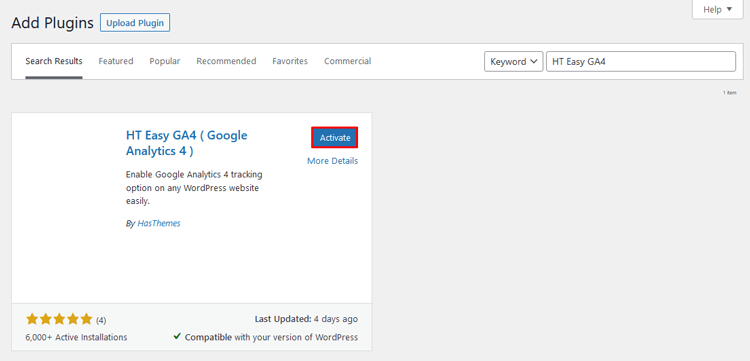
Go to Settings > HT Easy GA4 in your WordPress dashboard.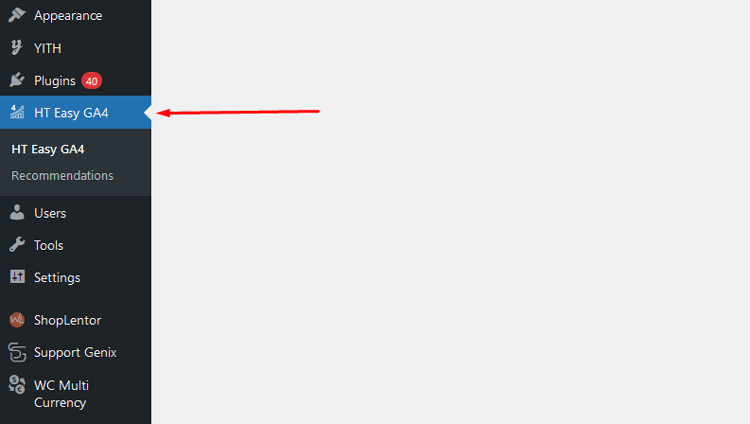
Connect your account by signing in with Google, or enter your Measurement ID manually.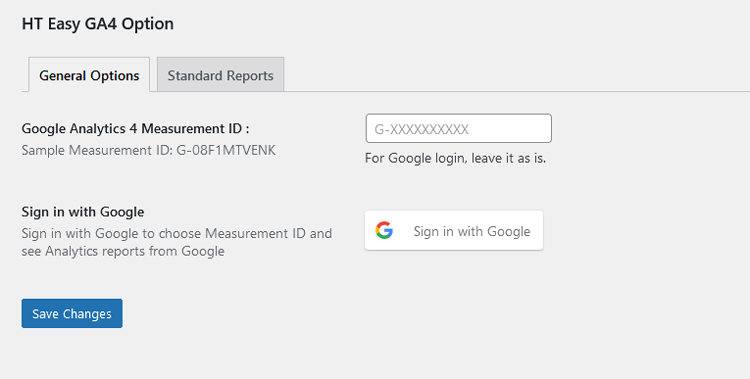
Turn on the eCommerce events you need and save your changes.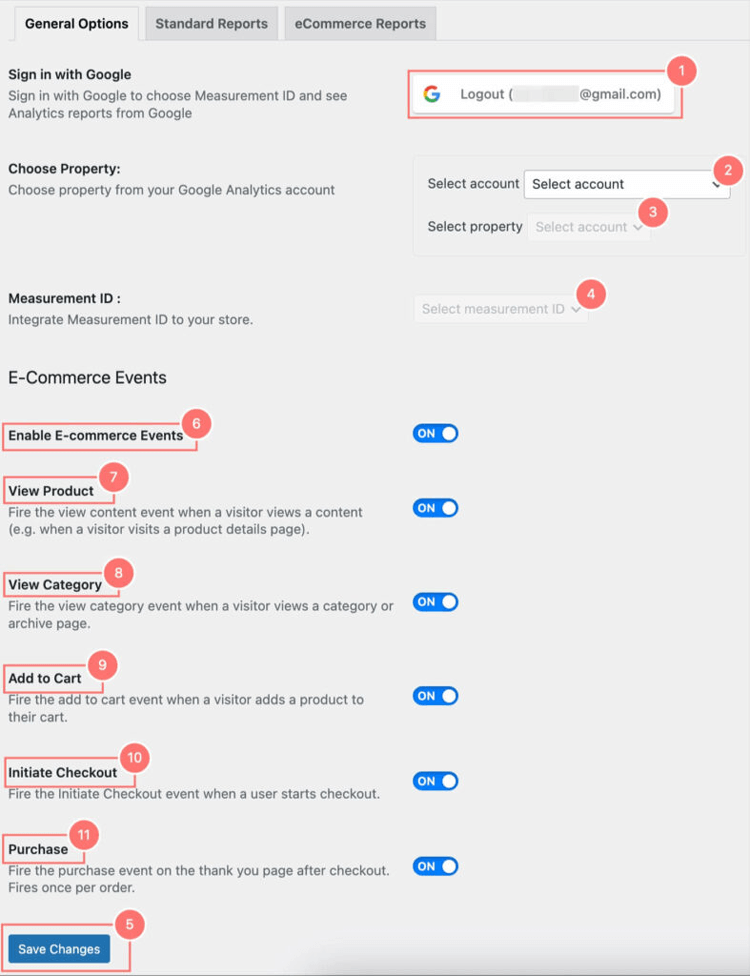
Place a test order and check the result in the plugin’s GA4 Inspector tool and in GA4 DebugView.
The plugin also shows key numbers, such as sessions and page views, inside your WordPress dashboard. If you are still setting up GA4 on WordPress, read our guide on how to install Google Analytics on WordPress.
Read More: How to Install Google Analytics on WordPress: A Step-By-Step Guide
For Shopify: Using the Analyzely GA4 App
Install the Analyzely GA4 app from the Shopify App Store. Activate the app in your store.
Sign in with Google to Connect Google Analytics in the Analyzely app effortlessly
Choose the eCommerce events you want to track in the app dashboard.
Click on the Finish Button to complete the setup.
The Analyzely app provides real-time and customizable reports to monitor store visitors and sales performance. You can track active users, popular events, visitor locations, device usage, and key metrics like sessions, page views, and bounce rates.
The app shows reports for visitors and sales, including total orders, AOV, conversion rates, and top-performing products. For a longer walkthrough, see how to add Google Analytics to Shopify.
Read More: How to Add Google Analytics to Shopify: Most Easy Way
How to Read eCommerce Reports in GA4
Once data flows in, use the Monetization reports. GA4 does not have the old “Product Performance” and “Sales Performance” reports from Universal Analytics. Here are the reports to use instead.
Monetization Overview
Go to Reports > Life cycle > Monetization > Monetization overview. By default, it shows these cards (Google Analytics Help):
- Total revenue: revenue from ecommerce, in-app purchases, subscriptions, and ads, minus refunds.
- Purchase revenue: revenue from ecommerce and in-app purchases.
- Total purchasers: users who made a purchase.
- First-time purchasers: users who bought for the first time.
- Average purchase revenue per user: average purchase revenue for each user.
Use it to watch trends and compare date ranges. Check it weekly for sudden drops or spikes.
Ecommerce Purchases
This report gives item-level data. It shows how many times each item was viewed, added to the cart, and purchased. Compare these numbers for each product:
- High views, low cart adds: check price, images, and product copy.
- High cart adds, low purchases: check shipping costs, payment options, and checkout steps.
GA4 builds this report from the items array, so poor item data gives poor results.
Purchase Journey
This report shows how shoppers move through the buying process. It needs the view_item, add_to_cart, begin_checkout, and purchase events to work. Use it to find the step where most shoppers drop off.
Key Events and Session Key Event Rate
GA4 no longer uses “conversion rate” for site events. It uses the session key event rate: the share of sessions with a key event, such as a purchase. Because purchase is a key event by default, you can compare this rate across channels to see which sources bring real buyers.
Common Problems and Fixes
- Ecommerce reports are empty. GA4 shows no ecommerce data until you send the events. Check DebugView to confirm the events arrive with an
itemsarray. - Revenue shows as zero. The
valueorcurrencyfield may be missing or wrong. Send both on every revenue event. - Orders are counted twice. Two tools may fire
purchase, the confirmation page may reload, ortransaction_idmay be missing. Use one method and a unique ID. - Realtime works, but reports are empty. Standard reports can take 24 to 48 hours. If items are still missing later, check your item parameters.
- Product names look wrong. The
item_namevalues come from your store. Fix them at the source.
HT Easy GA4
#1 📈 Google Analytics Plugin for WordPress
🚀 Supercharge your WordPress website with analytical insights. (Including WooCommerce Report)
Frequently Asked Questions
Is Google Analytics good for eCommerce?
Yes. GA4 tracks shopping events and shows revenue, purchasers, and product performance. It works best when your events and item data are clean.
Does GA4 track sales automatically?
No. GA4 needs ecommerce events such as purchase, sent with value, currency, and items. A plugin, GTM, or custom code must send them.
How long does it take to set up eCommerce tracking?
A plugin setup can take a few minutes. GTM or custom code can take hours or days, depending on your store and your developer.
Do I need Google Tag Manager for eCommerce tracking?
No. You can use custom code or a plugin. GTM adds flexibility, but it also needs a data layer from your store.
What is a transaction ID in GA4?
It is a unique ID for each order, sent with the purchase event as transaction_id. It helps GA4 avoid counting the same order twice.
Can I track individual product performance?
Yes. The Ecommerce purchases report shows views, cart adds, and purchases for each item.
How often should I check my eCommerce reports?
Review them at least once a week. Check them right after you change your store, checkout, or tracking setup.
Conclusion
eCommerce tracking turns raw traffic into clear answers: which products sell, where shoppers drop off, and which channels pay off. Choose one method, send clean events, and test with DebugView before you trust any report.
If you run WordPress, HT Easy GA4 is the quickest way to start. If you run Shopify, try the Analyzely GA4 app. Then use the Monetization reports to find your next improvement.