How to Hide WooCommerce Shipping Methods Based on Cart, Location, or Free Shipping

If your WooCommerce checkout is showing too many shipping options, you are not alone. Flat rate, express, local pickup, and free shipping all appearing at once can confuse customers, and confusion at checkout leads to abandoned carts.
The good news is that you can hide WooCommerce shipping methods based on where your customer is, how much they have in their cart, or whether they have already qualified for free shipping.
WooCommerce gives you several native tools to control shipping visibility: shipping zones handle location-based rules, free shipping settings manage thresholds, coupon-based availability, and conditional shipping plugins or custom code take care of more advanced cart- or product-level logic.
For stores that also want to improve how those shipping options are communicated with a cleaner cart page, a free shipping progress bar, or a better checkout layout, ShopLentor offers cart and checkout tools built for exactly that.
This guide walks you through every method, from the simplest WooCommerce settings to plugin-based conditional rules, so you can build a checkout experience that is clear, efficient, and conversion-friendly. Because WooCommerce features and plugin behavior can change, always verify your settings and test any changes on a staging site before pushing them live.
Quick Answer
You can hide WooCommerce shipping methods using shipping zones (location-based), free shipping rules (threshold or coupon-based), and conditional shipping plugins or code (cart/product-based). For advanced rules, a dedicated plugin or developer customization is usually needed. ShopLentor improves how shipping offers are displayed in your cart and checkout, but the actual method-hiding logic lives in WooCommerce and any shipping plugins you use.
Table of Contents
Why Hide WooCommerce Shipping Methods?
Too many shipping options at checkout can confuse customers and slow down purchase decisions. When free shipping is available, it usually makes sense to highlight it instead of forcing shoppers to compare it with several similar paid methods.
Hiding irrelevant options also makes checkout cleaner. For example, local pickup should not appear for international buyers, and some stores may prefer to hide the flat rate once the customer qualifies for free shipping.
If you are just getting started, check out this guide on how to set up WooCommerce in WordPress to make sure your shipping foundation is properly configured first.
How WooCommerce Shipping Methods Work
WooCommerce uses shipping zones, geographic groups based on countries, states, regions, or postcodes to decide which methods to show. Each customer is matched to exactly one zone based on their shipping address, and they only see the methods assigned to that zone.
Zone order matters: WooCommerce uses the first matching zone it finds, so specific zones (postcodes) should always appear above broad ones (entire countries). Free Shipping is itself a zone-level method and can require a minimum order amount, a coupon, or both.
Method 1: Hide Shipping Methods by Location (Shipping Zones)
The most direct way to hide methods is to simply not add them to zones where they should not appear.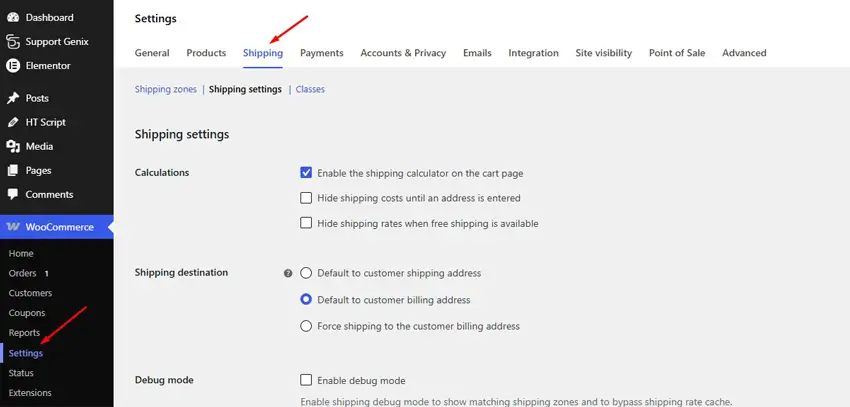
Steps:
- Go to WooCommerce > Settings > Shipping > Shipping zones
- Click Add shipping zone or edit an existing one
- Set the Zone regions (countries, states, or postcodes)
- Add only the methods relevant for that location
- Arrange zones from most specific to most general
- Test with different addresses to confirm correct display
Example:Zone Visible Methods Local city postcodes Local Pickup + Flat Rate Domestic (same country) Standard Shipping + Free Shipping International International Flat Rate only
Method 2: Hide Paid Shipping When Free Shipping Is Available
WooCommerce has a built-in option to hide other methods once free shipping is unlocked.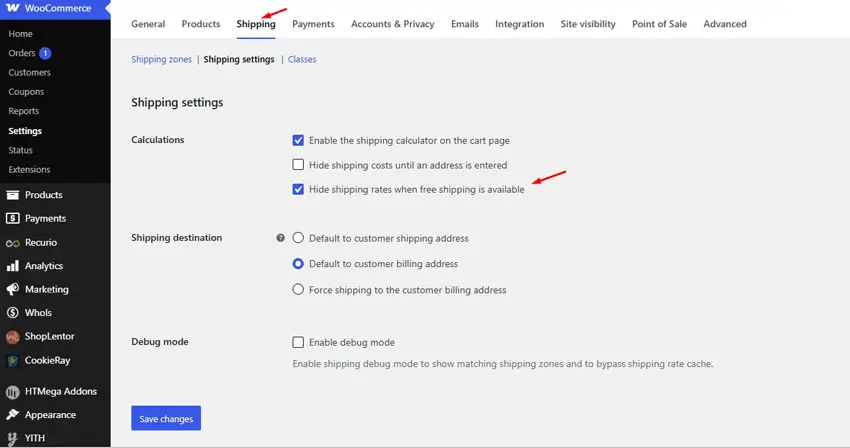
Steps:
- Add Free Shipping to the relevant zone and set its requirement (minimum order, coupon, or both)
- Go to WooCommerce > Settings > Shipping > Shipping Settings
- Enable “Hide shipping rates when free shipping is available.”
- Save and test with a cart that both qualifies and does not qualify
If your store needs more specific behavior, for example, hiding flat rate but keeping express shipping visible, you may need a conditional shipping plugin or a custom snippet reviewed against the WooCommerce developer documentation.
Using a WooCommerce flash sale countdown timer alongside free shipping offers is another effective way to boost urgency and conversions at checkout.
Method 3: Hide Shipping Methods Based on Cart Total
The simplest cart-total approach is to use WooCommerce’s free shipping threshold.
Example logic:
- Under $50 → Only Flat Rate appears
- $50 and above → Free Shipping appears; other methods are hidden via the built-in setting
- Optional → Keep Express Shipping visible for customers who still want faster delivery
For more advanced price-based rules, a conditional shipping or table-rate plugin is usually easier than managing custom code.
You can also improve how cart totals are displayed with ShopLentor’s WooCommerce cart page customization tools to make progress toward free shipping clearer for customers
Method 4: Hide Shipping Methods by Product, Category, or Shipping Class
WooCommerce core does not have a built-in product-based rule builder, but shipping classes provide a foundation.
Common use cases that typically require a plugin or custom code:
- Hide Local Pickup for digital/virtual products
- Hide Free Shipping for oversized or freight items
- Show Freight Shipping only when heavy products are in the cart
- Show Local Delivery only for specific postcodes with perishable items
- Hide Express Shipping for preorder products
In most of these cases, you will need a conditional shipping plugin or custom development.
Method 5: Use a Plugin for Advanced Conditional Rules
A dedicated shipping rules plugin is often the best option when your logic goes beyond WooCommerce’s built-in settings.
Use a plugin when:
- You need to combine multiple conditions (location + cart total + product category).
- Non-technical team members need to update rules without editing code.
- You want a visual rule builder instead of custom PHP.
- Shipping rules change frequently with the season or promotions.
Always verify the plugin’s official documentation before using it, and test it on staging before applying it to your live store.
For a broader look at tools that improve WooCommerce functionality, see this roundup of essential WooCommerce plugins covering checkout, cart, and conversion tools.
Where ShopLentor Fits Into WooCommerce Shipping Optimization
ShopLentor is not a shipping rules engine. Instead, it helps improve the user experience around shipping offers, cart totals, and checkout clarity. It is part of the ShopLentor WooCommerce page builder plugin suite, which lets you customize every part of the WooCommerce shopping experience without code.
Free Shipping Bar
ShopLentor’s Free Shipping Bar for WooCommerce shows customers how close their cart total is to unlocking free shipping, which can increase average order value when combined with WooCommerce’s free shipping threshold. It reinforces your existing WooCommerce rules but does not hide or show shipping methods itself.
Cart & Checkout Widgets
ShopLentor’s cart and checkout widgets, including Cart Table, Cart Total, Cross Sell Product, and Empty Cart Message, let you design a cleaner, more focused cart page. Checkout widgets cover billing and shipping forms, payment display, coupon input, and order review, so you can clearly highlight shipping costs and totals.
In short: Use WooCommerce shipping zones, free shipping rules, and conditional plugins to control which methods appear. Use ShopLentor to control how your cart and checkout communicate those options to customers.
Best Practices Before Changing Shipping Methods
- ✅ Test multiple addresses (local, domestic, international)
- ✅ Test both guest and logged-in checkout
- ✅ Test carts with and without coupons
- ✅ Test carts just below and just above the free shipping threshold
- ✅ Verify each method type: Local Pickup, Flat Rate, Free Shipping, Express
- ✅ Ensure every valid cart scenario has at least one visible method
- ✅ Test code snippets or new plugins on a staging site before going live
Common Mistakes to Avoid
Misordered shipping zones
Many stores place a broad country-wide zone above a more specific postcode or city zone, so WooCommerce matches the broad zone first and never shows the intended local methods. Always keep specific zones above general ones so the correct shipping methods appear for the right customers.
Assuming free shipping automatically hides other methods
WooCommerce can show Free Shipping alongside Flat Rate or other methods unless you enable the setting that hides other rates when free shipping is available. If that option is not enabled, customers may still see paid methods even after they qualify for free shipping.
Using untested snippets on a live store
Custom code using hooks or filters can conflict with your theme, checkout flow, or shipping plugins if it has not been tested properly. Always compare snippets against official WooCommerce developer guidance and test them on staging before touching your live checkout.
Accidentally hiding every shipping option
Overly strict rules can leave some carts with no valid shipping method at all, especially when multiple conditions overlap. Test different addresses, cart totals, and product combinations so every valid order still has at least one shipping option.
Promoting free shipping without explaining the threshold
If customers see “Free Shipping” messaging but do not clearly understand the minimum order amount or coupon requirement, checkout can feel misleading. Make the condition visible in the cart, mini cart, or checkout so customers know exactly how the offer works.
Expecting a design plugin to manage shipping rules
Layout tools like ShopLentor improve presentation and shopping experience, but they do not replace WooCommerce shipping zones or conditional shipping logic. Keep rule management and design customization separate, so troubleshooting stays simple.
Frequently Asked Questions
Can WooCommerce hide shipping methods by location?
Yes, shipping zones control which methods appear per location. Customers only see methods assigned to their matched zone.
How do I hide flat rate when free shipping is available?
Enable “Hide shipping rates when free shipping is available” in WooCommerce > Settings > Shipping > Shipping Settings after configuring your Free Shipping method.
Can I hide shipping methods based on cart total?
Yes. Use a Free Shipping minimum order threshold combined with the built-in hide option, or use a conditional shipping plugin for more nuanced rules.
Can I hide methods for specific products or categories?
This usually requires shipping classes plus a conditional shipping plugin or custom code.
Does ShopLentor hide WooCommerce shipping methods?
No. ShopLentor handles cart and checkout layout and UX — the actual shipping visibility logic is managed through WooCommerce settings and any shipping plugins you use.
How can ShopLentor help with free shipping offers?
ShopLentor’s Free Shipping Bar shows customers their progress toward the free shipping threshold, helping increase average order value alongside your WooCommerce free shipping rules.
Should I use code or a plugin to hide shipping methods?
Use a plugin for non-technical setups or complex multi-condition rules. Use verified developer code only for simple, specific cases — and always test on staging first.
Why are the wrong shipping methods showing?
Check zone order, verify which zone your test address matches, review free shipping requirements, and inspect any conditional plugin rules that may be overriding your settings.
Conclusion
Start with WooCommerce shipping zones for location control, add free shipping with a threshold or coupon for availability control, and reach for a conditional shipping plugin or developer code only when your rules go beyond what core settings support.
ShopLentor rounds out the experience, using its Free Shipping Bar to motivate customers toward the threshold and its cart/checkout widgets to present totals and shipping choices clearly.
If you want to improve how customers experience your shipping offers, explore the Free Shipping Bar for WooCommerce and ShopLentor’s cart and checkout widgets as your next step.